How to Convert Meeting Recordings into Step-by-Step SOPs (Teams, Zoom, Google Meet)

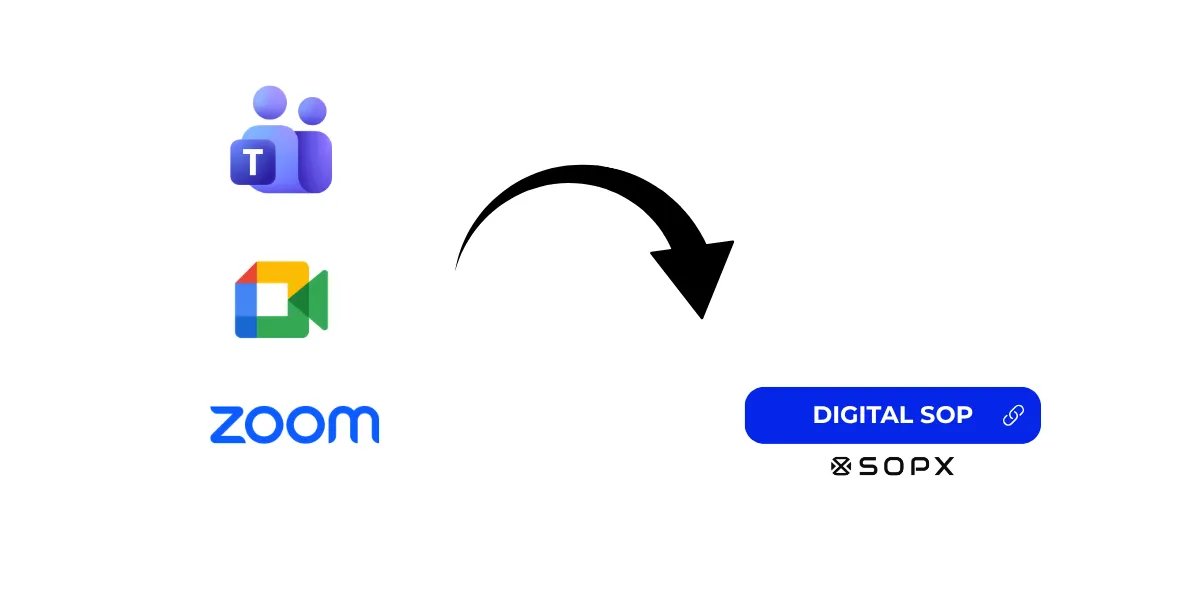
Turn Microsoft Teams, Zoom, Google Meet, and Webex meeting recordings into structured SOPs and work instructions. Step-by-step guide covering recording export, free screen recording, and AI-powered SOP generation.
30-Second Summary
Your team already runs process walkthroughs, training sessions, and demos over Microsoft Teams, Zoom, Google Meet, and Webex. Those recordings contain step-by-step knowledge that never makes it into documentation. This guide shows how to convert meeting recordings into structured SOPs from any platform, covers a free browser-based screen recorder for capturing cleaner process videos, and explains how to use video SOP software to generate documentation in minutes instead of hours.
Why meeting recordings contain undocumented knowledge
Every week, experienced operators, engineers, and team leads walk colleagues through processes on video calls: Microsoft Teams, Zoom, Google Meet, or Webex. Someone shares their screen, demonstrates a workflow, and explains each step out loud.
These recordings end up in SharePoint, Google Drive, Zoom Cloud, or a local downloads folder. A few people know they exist. Nobody converts them into documentation.
The knowledge is there:
- Screen shares showing the exact sequence of clicks, inputs, and system responses
- Verbal narration explaining why each step matters, not just what to do
- Q&A sections where new hires ask the questions that reveal what’s actually confusing
- Live troubleshooting showing how experienced operators handle exceptions
The problem is that a 45-minute meeting recording is not a usable SOP. Operators can’t pause mid-task to scrub through a video looking for one step. Auditors won’t accept a cloud storage link as a documented procedure. And when the process changes, nobody re-records the call.
Step-by-step: from meeting recording to structured SOP
Step 1: Locate and download the recording
Every meeting platform stores recordings differently. Here’s how to find and download them from each.
Microsoft Teams
Teams recordings are stored in OneDrive (for 1:1 calls and ad-hoc meetings) or SharePoint (for channel meetings):
- From the Teams chat. Open the meeting chat. The recording appears as a message with a play button. Click the three-dot menu and select Open in SharePoint or Open in OneDrive.
- From SharePoint directly. Navigate to the channel’s SharePoint site → Documents → Recordings folder.
- From OneDrive. Go to OneDrive → Recordings folder (for non-channel meetings).
To download: open the file in SharePoint or OneDrive, click the three-dot menu, and select Download. Teams recordings are saved as .mp4 files.
Zoom
Zoom recordings are stored either in Zoom Cloud or locally on the host’s computer:
- Cloud recordings. Sign in to the Zoom web portal → Recordings → find the meeting → click Download.
- Local recordings. Open the Zoom desktop app → Meetings → Recorded tab → click Open to locate the files in your local folder (default:
Documents/Zoom).
Zoom saves recordings as .mp4 files. Cloud recordings also include a separate audio-only .m4a file and a chat transcript .txt file.
Google Meet
Google Meet recordings are automatically saved to the meeting organizer’s Google Drive:
- From Google Drive. Open Google Drive → My Drive → Meet Recordings folder.
- From the calendar event. Open the Google Calendar event for the meeting → click the recording link in the event details.
- From email. The organizer and the person who started the recording receive an email with a link to the recording.
To download: right-click the file in Google Drive → Download. Google Meet recordings are saved as .mp4 files. Note: recording is only available on Google Workspace Business Standard, Business Plus, Enterprise, and Education editions.
Webex
Webex recordings are stored in the Webex cloud or locally, depending on the recording type:
- Cloud recordings. Sign in to your Webex site → Recordings → find the meeting → click Download.
- Local recordings. Open the Webex app → Meetings → find the recording in your local storage.
Webex saves cloud recordings as .mp4 files. Local recordings may be saved in .arf or .wrf format, so convert these to .mp4 using the Webex Recording Player before uploading to SOP software.
Quick reference: where each platform stores recordings
| Platform | Cloud storage location | File format | Who can access |
|---|---|---|---|
| Microsoft Teams | OneDrive or SharePoint | .mp4 | Meeting participants (by default) |
| Zoom | Zoom Cloud or local folder | .mp4 | Host (cloud) or host’s machine (local) |
| Google Meet | Google Drive (organizer’s) | .mp4 | Organizer + person who started recording |
| Webex | Webex Cloud or local folder | .mp4 (cloud), .arf/.wrf (local) | Host and invited attendees |
Step 2: Trim the recording to the relevant process
Most Teams calls include small talk, waiting for attendees, Q&A tangents, and screen-sharing setup. A 60-minute meeting might contain 15 minutes of actual process demonstration.
Before processing, trim the video to the process-relevant portion:
- On Windows. Open in the built-in Video Editor (Photos app) or Clipchamp. Cut the start and end to isolate the walkthrough.
- On macOS. Open in QuickTime Player → Edit → Trim. Save the trimmed clip.
- Online. Use any free video trimmer. No need for precision editing, just remove the non-process segments.
If the recording covers multiple separate procedures, split it into individual files. A single video should demonstrate one procedure. Mixing procedures produces unfocused SOPs.
Step 3: Upload to video SOP software
Upload the trimmed .mp4 file to a video SOP tool. The AI analyzes the video, identifies where one step ends and the next begins, extracts screenshots from relevant frames, and generates a structured SOP with:
- Step titles and descriptions
- Screenshots showing the correct state at each step
- Safety callouts and quality checkpoints (when narration includes them)
- Logical grouping of related steps
The typical workflow in SOPX:
- Upload the video. Drag and drop the
.mp4file. - Set the context. Specify the audience (operators, new hires, auditors), detail level, and document type (SOP vs. work instruction).
- AI generates the SOP. Steps are extracted with titles, descriptions, and visual content.
- Review and edit. An SME reviews for accuracy. AI produces a strong first draft, not a finished document.
- Publish. Share via link, QR code, or mobile-optimized viewer.
Step 4: Review with the subject matter expert
The person who gave the original walkthrough should review the generated SOP. Common edits:
- Adding safety warnings that were implied but not stated during the call
- Correcting terminology the AI may have misinterpreted from audio
- Splitting steps that are too broad or merging steps that are too granular
- Adding tolerances, values, or specifications that weren’t mentioned verbally
This review step typically takes 10-20 minutes. Compare that to the 2.5-6 hours it takes to write an SOP from video manually.
When to use the free screen recorder instead
Meeting recordings from Teams, Zoom, Google Meet, or Webex work well for existing footage you already have. But when you’re recording a new process walkthrough specifically for SOP creation, a dedicated screen recorder produces better results.
Why? Meeting recordings include:
- Meeting UI elements (participant panels, chat sidebars, notification popups)
- Audio from all participants (background noise, crosstalk, muted/unmuted transitions)
- Lower resolution when bandwidth is limited
- Compression artifacts on detailed UI elements
A screen recorder captures just the screen, your microphone, and optionally your camera, with no meeting interface in the way.
SOPX Free Screen Recorder
Record your screen for free - directly in your browser. No download, no extension, no account required.
What it captures:
- Full screen, window, or tab: choose exactly what to record
- Microphone audio: narrate the process as you demonstrate it
- Camera overlay: optional picture-in-picture webcam feed
- WebM output: upload directly to SOPX for SOP generation
The workflow:
- Open the free screen recorder in Chrome, Edge, or Firefox.
- Select what to share (full screen, specific window, or browser tab).
- Enable your microphone. Narrate each step as you perform it.
- Click stop when finished. Download the
.webmfile. - Upload the
.webmto SOPX. The AI generates a structured SOP from your recording.
Everything happens in the browser. No data leaves your machine during recording. The .webm file is processed locally until you choose to upload it.
Best for: New process recordings where you want clean footage specifically designed for SOP generation.
Meeting recording vs. screen recorder: when to use each
| Factor | Meeting recording (Teams, Zoom, Meet, Webex) | Free screen recorder |
|---|---|---|
| Best for | Existing recordings you already have | New recordings made for documentation |
| UI clutter | Meeting interface visible (participant panels, chat, controls) | Clean screen capture only |
| Audio quality | Multiple participants, variable quality | Single narrator, consistent quality |
| File format | .mp4 (all platforms) | .webm (upload directly to SOPX) |
| Setup required | None (recording exists) | Open browser tool, click record |
| Cost | Free (included in platform) | Free (no account required) |
| Camera overlay | Participant video tiles | Optional PiP webcam |
| Ideal video length | Trim from longer meeting | Record only the process (5-15 min) |
Use meeting recordings when the knowledge is already captured, regardless of which platform it was recorded on. Use the screen recorder when you’re creating documentation from scratch and want the cleanest possible input for AI processing.
Tips for better SOPs from meeting recordings
Before the call
- Record with documentation in mind. If you know a meeting walkthrough will become an SOP, ask the presenter to narrate each action clearly. “Now I’m clicking Settings, then selecting the Output Format dropdown” produces better AI output than silent clicking.
- Use screen share, not application share. Full screen share captures the complete context. Application share (available in Teams and Webex) may crop important elements.
- Mute non-presenters. Background audio from other participants degrades transcription accuracy. This applies to all platforms: Teams, Zoom, Google Meet, and Webex.
After the call
- Trim aggressively. Remove everything that isn’t the process demonstration. Shorter, focused videos produce better SOPs than long recordings with tangents.
- Split multi-process recordings. If the call covered three separate workflows, create three separate video files. Each SOP should document one procedure.
- Check audio quality. If the narrator’s audio is muffled or there’s heavy background noise, add written context when uploading to help the AI understand what the video shows.
During SOP review
- Verify step completeness. Teams recordings often skip “obvious” steps that the experienced presenter does automatically. New hires need every step documented.
- Add what the video doesn’t show. Login credentials, environment selection (staging vs. production), and prerequisite configurations may not appear in the recording.
- Include failure states. The walkthrough shows the happy path. Add notes about what happens when something goes wrong at each step.
Common use cases for meeting-recording-to-SOP conversion
Software workflow documentation
A senior developer walks a new team member through the deployment process on a Zoom call. The screen share shows every click, command, and configuration. Without conversion, that knowledge lives in a recording only the two of them know about.
Converting to an SOP: upload the trimmed screen share → AI extracts each step with screenshots → the developer reviews and adds edge cases → the team has a deployment SOP that anyone can follow.
IT helpdesk procedures
IT teams record troubleshooting walkthroughs on Teams or Google Meet when solving tickets. “Let me show you how to fix this” becomes a 10-minute screen share. Converting those recordings into SOPs builds a knowledge base that reduces ticket escalations.
Client onboarding
Customer success teams run onboarding calls over Zoom or Google Meet, walking clients through product setup. Converting those recordings into client-facing SOPs means clients have reference documentation after the call ends, not just a recording they’ll never rewatch.
Cross-site process standardization
A plant manager at one site records their changeover procedure on a Teams or Webex call with another site. Converting that recording into an SOP ensures both sites follow the same documented process, not two interpretations of the same video.
Remote team training
Distributed teams use Google Meet or Zoom to run training sessions for new hires. The trainer shares their screen and demonstrates processes step by step. Converting these training recordings into SOPs creates reusable onboarding documentation that scales, so new hires get the same structured instructions regardless of when they join.
Frequently Asked Questions
Can I convert a Microsoft Teams recording into an SOP?
Yes. Download the .mp4 recording from SharePoint or OneDrive, trim it to the process-relevant section, and upload it to video SOP software. The AI will extract steps, screenshots, and descriptions to produce a structured SOP. For a broader guide on using existing videos, see our guide to creating SOPs from video you already have.
Can I convert a Zoom recording into an SOP?
Yes. Download the .mp4 file from Zoom Cloud (via the Zoom web portal → Recordings) or locate the local recording in your Documents/Zoom folder. Trim the recording to the relevant process walkthrough and upload it to video SOP software like SOPX. The AI analyzes the video, extracts steps with screenshots, and generates a structured SOP you can edit and share.
Can I convert a Google Meet recording into an SOP?
Yes. Google Meet recordings are saved as .mp4 files in the organizer’s Google Drive under the Meet Recordings folder. Download the file, trim it to the process demonstration, and upload it to video SOP software. Note that Google Meet recording requires a Google Workspace Business Standard, Business Plus, Enterprise, or Education plan.
Can I convert a Webex recording into an SOP?
Yes. Download the .mp4 recording from the Webex cloud portal. If the recording was saved locally in .arf or .wrf format, convert it to .mp4 first using the Webex Recording Player. Once you have the .mp4 file, trim and upload it to video SOP software for AI-powered SOP generation.
What format are meeting recordings saved in?
All major meeting platforms save recordings as .mp4 files: Microsoft Teams (stored in OneDrive or SharePoint), Zoom (stored in Zoom Cloud or locally), Google Meet (stored in Google Drive), and Webex (stored in Webex Cloud). The .mp4 format is directly compatible with video SOP software, no conversion needed. The one exception is Webex local recordings, which may be saved as .arf or .wrf and need conversion to .mp4 first.
Is there a free screen recorder I can use instead of a meeting recording?
Yes. The SOPX free screen recorder works directly in your browser with no download or account required. It captures your screen, microphone, and optional camera overlay, and outputs a .webm file you can upload directly to SOPX for SOP generation. This produces cleaner footage than any meeting recording because there’s no meeting UI, participant panels, or multi-person audio.
How long does it take to convert a meeting recording to an SOP?
With video SOP software, a 10-minute recording typically produces a structured SOP in 10-15 minutes (including AI processing and human review). This applies to recordings from any platform: Teams, Zoom, Google Meet, or Webex. Manual transcription of the same recording takes 2.5-6 hours. See the full method comparison.
Do I need to trim the meeting recording first?
It’s strongly recommended. Meeting recordings from any platform usually include non-process content (waiting for attendees, small talk, Q&A). Trimming to the process demonstration improves AI accuracy and produces more focused SOPs. If the recording covers multiple procedures, split it into separate files.
What if the meeting recording has poor audio quality?
The AI uses both visual and audio cues to identify steps. If audio is poor, the visual analysis still works and you’ll get steps based on screen changes and actions. You can add written context when uploading to help the AI understand what’s happening. Results are better with clear narration, but not unusable without it. This applies equally to Teams, Zoom, Google Meet, and Webex recordings.
Which meeting platform produces the best recordings for SOP generation?
All major platforms produce .mp4 files that work well with video SOP software. The quality differences are minimal. Zoom and Teams tend to offer slightly higher resolution screen shares. Google Meet recordings are reliably clean but require a paid Workspace plan. For the best results regardless of platform, ask the presenter to narrate each step, mute non-presenters, and use full-screen share rather than application share.
Can I use this for physical processes recorded over a video call?
Yes, if someone pointed a camera at the physical process during the call. However, for physical processes, dedicated video recording with a phone or GoPro produces much better results than a webcam feed from any meeting platform. Use meeting recordings for software and screen-based workflows and record physical processes separately.
What is video SOP software?
Video SOP software analyzes process recordings and generates structured SOPs or work instructions automatically. It splits video into discrete steps, extracts screenshots, and produces editable documentation with version control and distribution tools. It works with recordings from any source: meeting platforms, screen recorders, phone cameras, or action cameras. For a full overview, see our guide to video-to-SOP software.
Get started
If you already have meeting recordings from Teams, Zoom, Google Meet, or Webex, you can start converting them into SOPs today.
Option 1: Download existing meeting recordings from any platform and upload them to SOPX for AI-powered SOP generation.
Option 2: Use the free screen recorder to capture a clean process recording, then upload the .webm file to SOPX.
Try SOPX free for 7 days – no credit card required.