
Product & Company ·
Add Images Next to Video in One SOP Step
Put video clips and images in the same SOP step. Add a CAD drawing, a photo of a tool or a close-up of a label next to the video. Every item exports in order.

Table of contents
TL;DR
One SOP step can now hold video clips and images together. Open a step that has a video and click + Add image or video. Add a CAD drawing, a photo of a tool, a close-up of a gauge, or another clip. Readers move between them with a thumbnail strip under the media. Each clip keeps its own trim, zoom, rotation and annotations. PDF, Word and Markdown exports show every image and clip thumbnail in order. PowerPoint and SCORM get each clip as a trimmed video. It works on every plan.
| What you can do now | Where to find it |
|---|---|
| Add images or videos to any step | + Add image or video under the media |
| Drop a mix of files at once | Drag images and videos onto the step |
| Copy a clip or image | Copy icon next to the X on the media |
| Change the order | Drag a thumbnail, or use Move with the arrows |
| Move between items as a reader | The thumbnail strip, or the arrows on the media |
Why we built it
A video shows how the job is done. But some things in a step are not in the video.
Before this release, a step held one video, or one or more images. Not both. So a video step had no room for anything else.
Customers asked us for a way to add their own images next to the video in a step. Images like these:
- a CAD drawing,
- a tool that is not visible in the video,
- a photo of a good part and a bad part, so the operator can compare,
- a close-up of a label, nameplate or gauge that is too small in the video,
- the machine settings or setup sheet for this step,
- a wiring or pipe diagram,
- a photo of the finished result.
These images are not a separate step. They belong to the step the video shows.
That is the problem. If the drawing goes in its own step, the SOP gets an extra step that is not an action. Readers lose the link between the drawing and the work. If the drawing stays out, people go and look for it somewhere else.
Now the drawing sits in the same step as the video.
| The situation | Before | Now in SOPX |
|---|---|---|
| The step has a video, and you need a drawing | Make a fake step, or leave the drawing out | Add the drawing next to the video |
| The right tool is not visible in the video | Explain it in text | Add a photo of the tool |
| The step needs two views of the same job | Split it into two steps | Two clips in one step |
| The operator must check the part is right | Describe a good part in text | Add a photo of a good and a bad part |
What a mixed step looks like
Here is a step from a boiler shutdown SOP. It has two video clips and one photo of the safety gloves.
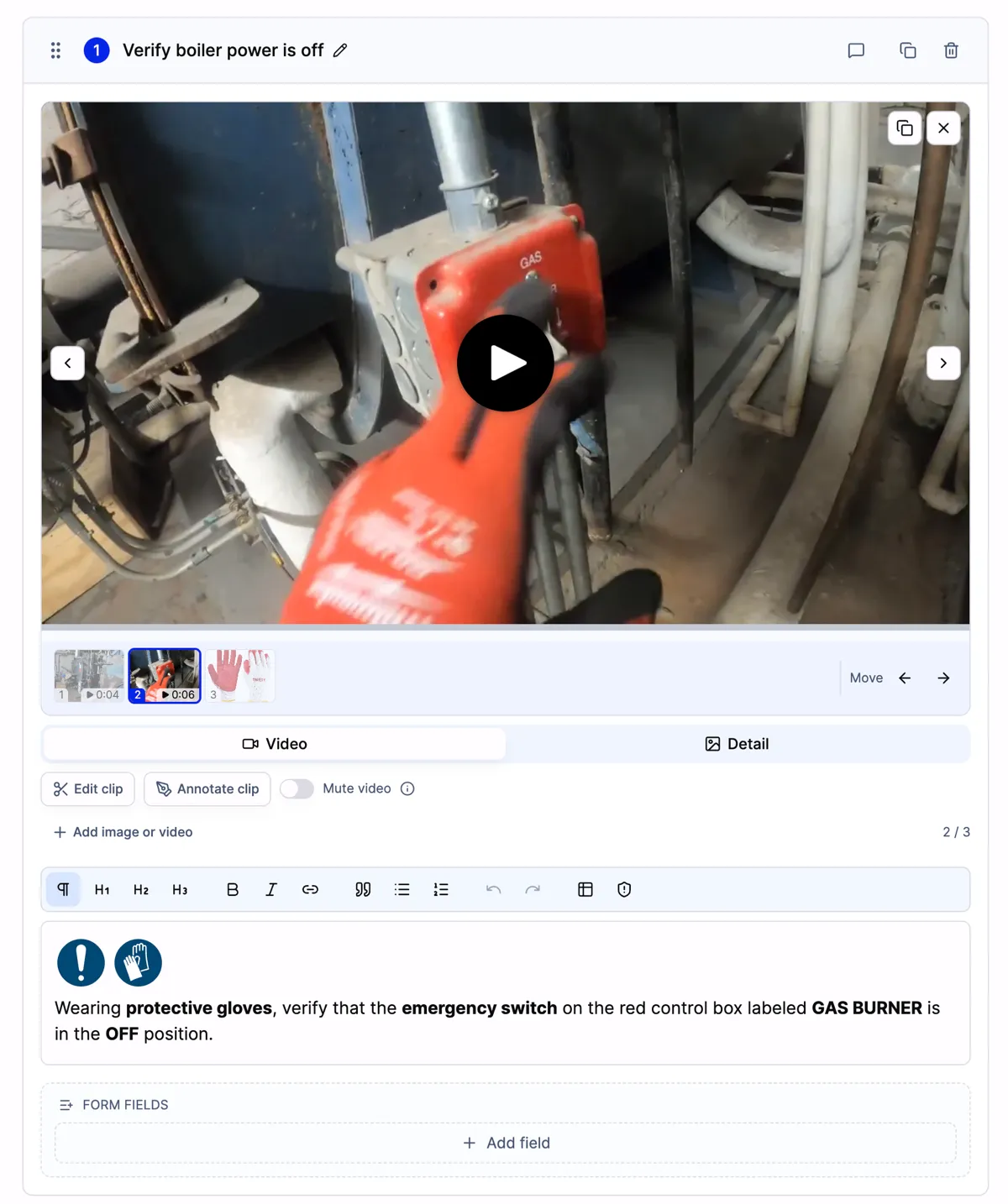
Two clips and a photo in one step. The strip shows item 2 of 3.
A few things to see in the picture:
- The thumbnail strip sits under the media. Clips show a play badge and their length (0:04 and 0:06). The photo has no badge.
- The counter on the right says 2 / 3.
- The tools change with the item. On a clip you see Video, Detail, Edit clip and Annotate clip. On an image you see Edit image and Annotate.
- + Add image or video is always there, under the tools.
How to add images to a video step
- Open the procedure and click Edit.
- Go to a step that has a video.
- Click + Add image or video under the media.
- Pick one or more images or videos. You can also drag files onto the step.
- The new items go after the ones already there. Drag a thumbnail to change the order, or use Move and the arrows.
- Save the draft.
The step text stays as it is. You can refer to the items by their number, like “see the drawing (3)”.
On a phone
Tap + Add image or video. One menu opens with three choices: take a photo, record a video, or choose files. So you can photograph the tool right where you stand.
What the editor accepts
- Images and videos, in any mix and any order. Drop several files at once and they are added in that order.
- No limit on items per step. The strip scrolls when it gets long. Each file still has its normal upload size limit.
- Paste works for images. Copy a screenshot and paste it into the step.
- Other files are refused. Drop a PDF and SOPX tells you: “Only images and videos can be added.”
Two clips from one video
Sometimes one video has two moments that matter for the same step. For example, the start of the job and a close-up at the end.
Here is how to show both:
- Click the copy icon next to the X on the clip.
- The copy appears right after the original.
- Open Edit clip on the copy and choose a different part of the video.
The original clip does not change. Each clip keeps its own settings:
| Setting | Kept per clip |
|---|---|
| Trim (start and end) | Yes |
| Zoom and rotation | Yes |
| Speed | Yes |
| Mute | Yes |
| Timed video annotations | Yes |
| The Detail still and its annotations | Yes |
| Show detail only | Yes |
The copy icon works on images too. Copy a photo, then crop the copy to a close-up.
Learn more about timed video annotations and the Detail.
What readers see
Readers get the same thumbnail strip as editors, without the edit tools. They click a thumbnail or use the arrows to move between items.
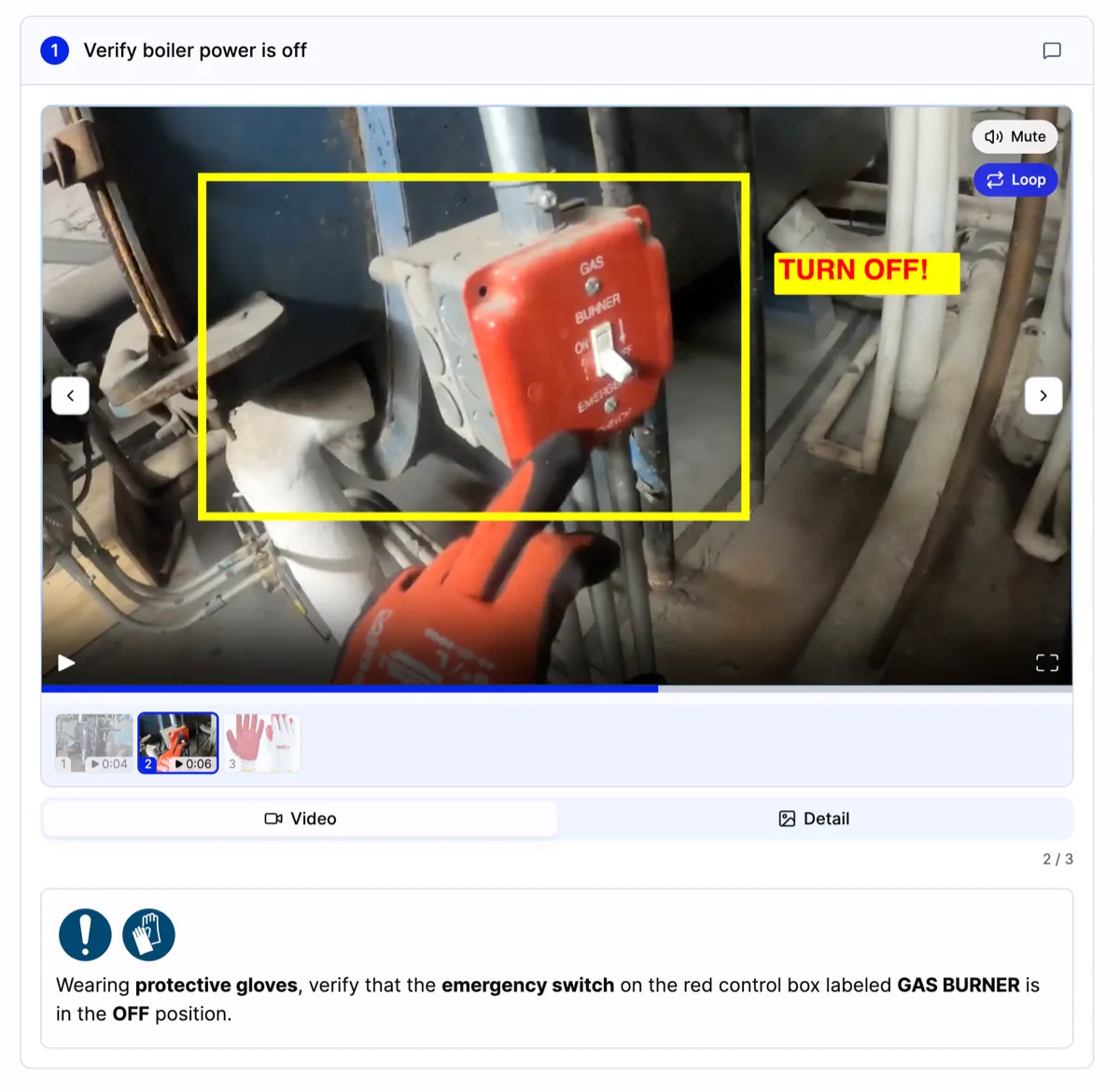
The reader sees item 2 of 3: an annotated clip, with the glove photo one click away.
When a reader leaves a clip, the video stops. No sound keeps playing in the background. If they turned the sound on, it stays on for the next clip.
This works everywhere a procedure opens:
- in the normal reading view, on a computer or a phone,
- in a run, where the step shows dots instead of the strip to save space,
- on a public share link and in an embedded procedure.
In a run, a clip starts playing when the reader moves to it, just like on a video step.
Exports
Every item in the step goes into the export, in the order you set.
| Export | Images | Video clips |
|---|---|---|
| Every image | A still picture of each clip, with its static annotations | |
| Word (.docx) | Every image | A still picture of each clip |
| Markdown | Every image | A still picture of each clip |
| PowerPoint (.pptx) | Every image | Each clip as a trimmed video |
| SCORM 1.2 | Every image | Each clip as a trimmed video |
Before this release, PDF, Word and Markdown showed only the images of a step. Now they show the clips too.
Read more about PowerPoint and Markdown export and SCORM export for your LMS. Which exports come with which plan is on the pricing page.
Small fixes in Edit clip and Annotate clip
This release also fixes two things in the clip editors:
- The last seconds of a video. Click near the end of a paused clip and you now see that frame. Before, it jumped to the very end.
- A mute button in both editors. It shows if the sound is on or off. If the clip is set to Mute video, the button is off and the editor says “This clip is muted”.
What this release does not do yet
We want you to know what to expect:
- AI makes one clip per step. When you create an SOP from a video, each step still gets one clip. You add images and more clips after.
- To add a clip from the same video, copy an existing clip. A step with no clip can’t pick a part of the source video yet. You can upload a video file to it.
- No swipe between items. Use the strip or the arrows.
- Translations follow the original. On a translation tab you can switch items, but you can’t add, remove or move them. Make those changes in the original language.
Who can use it
- Every plan. Mixed steps don’t need a higher plan.
- Anyone who can edit the SOP. That means owners, admins and creators with edit access. Viewers see the result.
- Published versions stay locked. Your changes go into a new draft, as always. A new version or a copy of the SOP keeps every item, in order, with its trims and annotations.
Frequently asked questions
Can I add an image next to a video in the same SOP step?
Yes. Open the step in edit mode and click + Add image or video. The image is added after the video. Readers switch between them with the thumbnail strip.
Can a work instruction step have more than one video?
Yes. A step can hold any number of clips and images, in any order. Each clip has its own trim, zoom and annotations.
Where do I put a CAD drawing or a reference photo in an SOP?
Put it in the step where the operator needs it, next to the video. Then it does not need its own step. You can refer to it in the step text by its number.
Do PDF exports include both the video and the images?
Yes. The PDF shows every image and a still picture of every clip, in the order you set. PowerPoint and SCORM include each clip as a video.
Can I show a tool that is not in the video?
Yes. Take a photo of the tool and add it to the step. On a phone, tap + Add image or video and choose to take a photo.
Can I use two parts of the same video in one step?
Yes. Click the copy icon on the clip, then open Edit clip on the copy and pick a different part of the video.
Try it now
- Open a procedure and click Edit.
- Go to a step with a video and click + Add image or video.
- Add the drawing, tool photo or diagram that the video does not show.
New to SOPX? Film a job on your phone and AI turns the video into an SOP. Then add the images your team needs next to each clip. For tips on marking up photos and screenshots, see how to make visual SOPs.