

How to Export an SOP to PowerPoint or Markdown

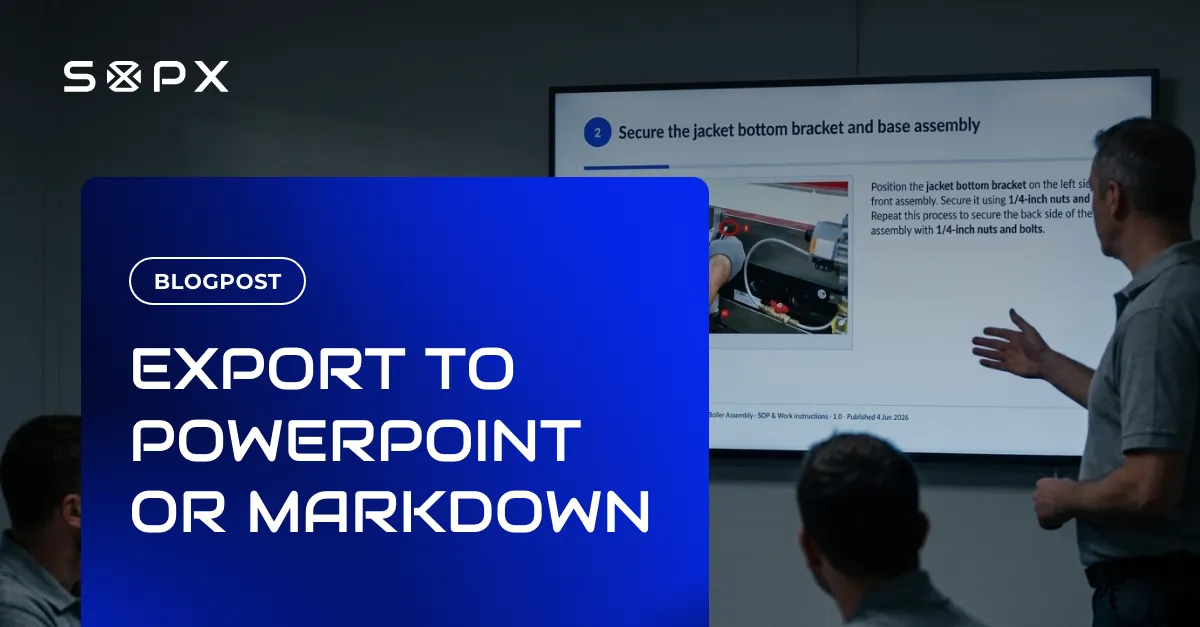
PowerPoint export gives one slide per step with the video embedded. Markdown export gives plain text any wiki, repo or AI tool can read. When to use each, and why an exported copy goes stale.
TL;DR
A procedure lives in SOPX, but sometimes you need it as a file. PowerPoint export builds a deck with one slide per step, carrying the step title, the description and the step video clip. Markdown export builds a zip with the procedure as plain text plus every step image. Use the deck to teach a room. Use Markdown to move the procedure into another system or hand it to an AI tool. Keep the live procedure as the version people work from.
- PowerPoint export is for a training session. One slide per step, with the clip embedded, so a toolbox talk runs straight from the SOP.
- Markdown export is plain text. Wikis, docs sites, repositories and AI tools all read it well. Pick it when the procedure has to move somewhere else.
- Before you export for a training room, try full screen mode. It shows one step at a time in a presentation view, it is on every plan, and it is always the current version.
- Both work offline. A file on a laptop needs no network, which matters at a remote site, at a customer, or in an audit room.
- Every exported file is a copy frozen at the moment you exported it. Revise the procedure and the copy keeps teaching the old way. Nobody gets a warning.
- Copies also spread. A deck ends up in email, on a shared drive and on a USB stick, and then nobody can tell which one is current.
- An exported file loses search and QR access. Inside SOPX, one search finds any step in any procedure, and one printed code opens the current version.
- PowerPoint and Markdown export are included on the Enterprise plan and available as paid add-ons on Pro.
What the PowerPoint export gives you
Training rooms run on slides. That has been true for a long time. It is why teams kept rebuilding finished procedures as decks before every session.
The export removes that step. You pick PowerPoint on a published procedure and get a deck back:
- One slide per step, in order.
- The step title and the written description on the slide.
- The step video clip embedded in the slide, so it plays in the room without a network connection.
- A footer on every slide carrying the document ID, the procedure name, the version number and the publish date.
- A table showing who approved the procedure, so the sign-off travels with the file.
That footer matters more than it looks. Anyone holding the deck can read the version off the bottom of the screen and check it against the live procedure. A file with no version stamp is the one that causes trouble later.
The deck is a normal .pptx. You can reorder slides, drop a title slide in front, or delete the steps a particular session does not need. It is your file after that point.
Where a deck is the right format
- A training session or a toolbox talk. Someone is standing at the front, and the room is looking at a screen.
- A group onboarding session. New starters get the same walk-through, in the same order, with the real footage of the real job.
- A supplier, a customer or an auditor who asked to see how you run a process and does not have a SOPX account.
- A record your quality system wants as a file. The deck carries the version, the publish date and the approval table, so the sign-off is in the document. Some document systems want exactly that. Not a link to a document. A file, with a date on it, in the folder where files go.
- An archive copy. A snapshot of how a job was done in a given year, kept because somebody eventually asks.
- A room with no network. The clips are inside the file.
One note on file size. Video inside a deck makes the file large, so a long procedure can outgrow what an email attachment allows. Share it the way you share other large files.
Before you export, try full screen mode
Full screen mode already does most of what a deck does. Open any procedure in it and you get a presentation view. One step at a time, large and clear, with the step video playing and simple controls to move forward and back. On a projector at the front of a room, it looks a lot like slides.
It also has the one thing a deck can never have. It is always the current version. Nobody exports, nobody re-exports, and nobody stands in front of new starters teaching a procedure that changed two revisions ago.
Full screen mode is on every plan, including the free trial. If the only reason you wanted a deck was to stand in front of a room, you already have one.
What the Markdown export gives you
Markdown export answers a different question. It is for moving the procedure somewhere else.
You get a zip holding the procedure as a Markdown file plus every step image. Markdown is plain text with light formatting, so almost anything can read it.
Putting the procedure into another system
- An internal wiki or knowledge base. Most of them import Markdown directly.
- A docs site. If your team publishes documentation from a static site generator, Markdown is already the input format.
- A code repository. Commit the file and every future revision shows up as a diff. You can see exactly which line changed between two versions. No other export format makes that easy.
Handing the procedure to an AI tool
This use has grown fastest, and Markdown is the right format for it.
AI tools read plain text far more reliably than a PDF or a deck. A PDF has to be turned back into text first, and the layout gets in the way. Markdown arrives already structured. Headings and lists stay intact, so the model sees the same shape you see.
Useful things teams do with that:
- Reformat into a house template. You have a required SOP layout with a specific header block and section order. Paste the Markdown in, ask for that layout, and you have a draft in your own format.
- Draft a quiz or a knowledge check from the steps, for a trainer to review.
- Cut a one-page work aid from a long procedure.
- Feed an internal assistant. Many teams run a search assistant over their internal documents. Procedures in Markdown sit alongside everything else and come back as clean answers.
One caution. Anything a model rewrites is a new document, and models change wording. Check the numbers before that output goes back to a person. Temperatures, torque values, pressures, part numbers, wait times. Treat AI output as a draft that a human approves.
What Markdown does not carry
The export carries the step images. It leaves out the video clips, because a wiki page is built for reading. If the clips are the point, use the PowerPoint export or SCORM export instead.
What about procedures you need offline?
This is the one case where an exported file is the whole answer.
Some work happens where there is no usable connection. A basement plant room. A remote pumping station. A customer site behind a locked-down network. A supplier audit in a meeting room with no guest wifi.
Both exports solve it. A deck plays its clips from the file. A Markdown zip opens in any text editor. Neither one needs a server.
If you do this, plan the refresh. Export a fresh copy shortly before the trip instead of pulling last year’s file off the drive. Check the version stamp against the live procedure when you get back.
Why an exported file should not be how people follow the job
Exports are useful. They are also the format where procedures go stale, and it happens quietly.
A file is a snapshot. The moment it is exported, it stops tracking the procedure. Someone revises the SOP because a fixture moved or a supplier changed a part, and the file carries on describing the old way. Nothing looks broken. There is no error message and no red banner. That is what makes it risky.
Copies multiply. A deck gets emailed, saved to a shared drive, copied to a USB stick and forwarded to a second site. Six months later there are four files with names like boiler-assembly-v2-FINAL-new.pptx and no reliable way to tell which one matches the current procedure. This is the exact problem most teams bought SOP software to escape.
You lose search. Inside SOPX, one search runs across every procedure and every step in the organization. Someone who cannot remember the procedure name can find it by describing what is in front of them. In a folder of exported files you are searching filenames.
You lose the QR code. A printed code on a machine opens the current version of the right procedure. Publish a revision and the code keeps working, with no reprint. We wrote about that pattern in printing QR codes for SOPs. An exported file has no equivalent. Someone has to know which file to open and where it lives.
The approval record travels, but only as a snapshot. The deck does carry the table of who approved the procedure, which is the point of exporting it for an auditor. What it cannot carry is anything that happened afterwards. A later revision, a different approver, a comment thread that changed a step. The table keeps reporting the sign-off it was exported with, and it will still look convincing two years after it stopped being correct. The live procedure is where document control actually lives.
Do not run the approval through the file. This is the trap the approval table sets. A deck that shows who signed off looks like something you send around for signatures, so someone emails it to four people and waits. Every copy carries the step videos, so the attachments are large, replies arrive out of order, and half the versions end up parked in SharePoint. Approve the procedure in SOPX, where sign-off is one action and the history is kept for you. Export afterwards, when you need the record as a file.
Translations do not follow. Publish a procedure in a second language and every live route updates. The file on the drive stays in the language it was exported in.
Nothing is measured. View analytics, run results and step sign-offs all come from the live procedure. A file tells you nothing about who opened it.
So the rule is simple. Export for the room, the wiki, the trip or the tool. Keep the live procedure for the job. A link, a QR code, or a search inside SOPX always resolves to the current approved version, and it costs nothing to keep current.
A practical habit helps here. Put the live link or a QR code on the last slide of every deck you present. The session ends with people knowing where the real procedure lives.
Exports are also the door out
There is a quieter reason to care about export formats, and it has nothing to do with training rooms.
Nobody wants their procedures living somewhere they cannot get them out of. It is a fair thing to ask before you commit a year of documentation to any tool. The question usually lands somewhere between the demo and the contract.
So read the export list as an answer to that question. PowerPoint, Markdown, PDF, Word and SCORM all come out in formats other tools already read. Markdown in particular is plain text with the images beside it, which is about as portable as a document gets. If SOPX ever stops being the right fit, your procedures come with you.
Every vendor says their platform is easy to leave. Having a button is a lower bar than it sounds. It is still more than you usually get, and the better reason to stay is that the live procedure beats every file you could export from it.
Which plans include these exports
PowerPoint export and Markdown export are both included on the Enterprise plan, and both are available as paid add-ons on Pro. Add-ons are bought separately from the Pro subscription and billed on a yearly invoice. Neither export is part of the free trial. PDF and Word export are on Pro already, and SCORM export works on the same terms as these two.
Where to start
Take the procedure you train people on most often. Run your next onboarding session straight from it in full screen mode. If you get to the end without wishing you had a file, you have your answer.
If you do need the file, export the deck and present from that instead. One session tells you whether the slides carry the job, or whether the steps need tightening first. Tightening them improves the live procedure for everyone else too.
If your documentation lives in a wiki or a repository, start with Markdown instead. Export one procedure, import it, and see how it lands. One procedure through the full loop teaches you more than a plan.
Either way, keep the live version current. The exports are only as good as the procedure behind them.
Frequently Asked Questions
Do I need the PowerPoint export to present a procedure?
No. Full screen mode opens any procedure in a presentation view, one step at a time with the step video. It is on every plan, including the free trial. On a projector it looks much like a deck, and it is always the current version. Use the PowerPoint export when you need an actual file. A room with no network, someone without a SOPX account, a quality system that wants a document with a date on it, or an archive copy.
Does the PowerPoint export include the step videos?
Yes. Each slide carries the trimmed video clip for that step, embedded in the file rather than linked, so it plays in a room with no network. That is also why a deck for a long procedure can get large.
What is on each slide?
The step title, the step description, and the step video clip. Every slide also carries a footer with the document ID, the procedure name, the version number and the publish date. The deck includes a table showing who approved the procedure, so anyone holding it can check both the version and the sign-off.
Can I edit the deck after exporting it?
Yes. It is a normal PowerPoint file. Add a title slide, reorder, or cut the steps a session does not need. Once you edit it, it is your document, and it no longer matches the procedure it came from. Keep that in mind before you circulate it.
Can we run our approval process on the exported deck?
Better not to. The deck carries an approval table, which makes it look like a sign-off form. That is how a procedure ends up circulating as an email attachment with the step videos inside it. Approve the procedure in SOPX instead. Sign-off is one action, the history is recorded against the procedure, and the next revision starts from the approved version. Export the deck afterwards, when you want the record as a file.
What is in the Markdown export?
A zip containing the procedure as a Markdown file plus every step image. The Markdown holds the procedure title, the description, and each step with its title and text. There are no video clips, because Markdown is a text format.
Why would I export a procedure to Markdown?
Two reasons. To move it into another system, such as a wiki, a docs site, a knowledge base or a code repository. And to hand it to an AI tool, because models read plain text more reliably than a PDF or a deck. Teams use that to reformat a procedure into a house template, draft a knowledge check, cut a short work aid, or feed an internal search assistant.
Can I use the exports to give people procedures offline?
Yes, and it is a good use for them. A deck plays its clips from the file and a Markdown zip opens in any text editor, so neither needs a connection. Export a fresh copy shortly before you need it, then check its version stamp afterwards. A file does not update itself.
What happens to an exported file when we update the procedure?
Nothing. The file holds the procedure as it was on the day you exported it, and it keeps describing that version forever. Nobody gets an error message, which is what makes stale copies risky. If a file has to stay accurate, re-export it whenever you publish a revision, and treat that as part of revising the procedure.
Should workers follow the exported file on the floor?
Use the live procedure for that. A link, a QR code on the machine, or a search inside SOPX always opens the current approved version. It works on a phone or a shop-floor terminal, and it needs no reprint when the SOP changes. An exported file has none of that. Search does not reach it, and it does not pick up translations. It carries the approval table from the day it was exported, which tells you who signed off on that version and nothing about what changed since.
Which plans include PowerPoint and Markdown export?
Both are included on the Enterprise plan. On Pro, both are available as paid add-ons, bought separately from the subscription and billed on a yearly invoice. Neither is available on the free trial. Current details are on the pricing page.