

Print QR Codes for SOPs and Work Instructions at the Machine

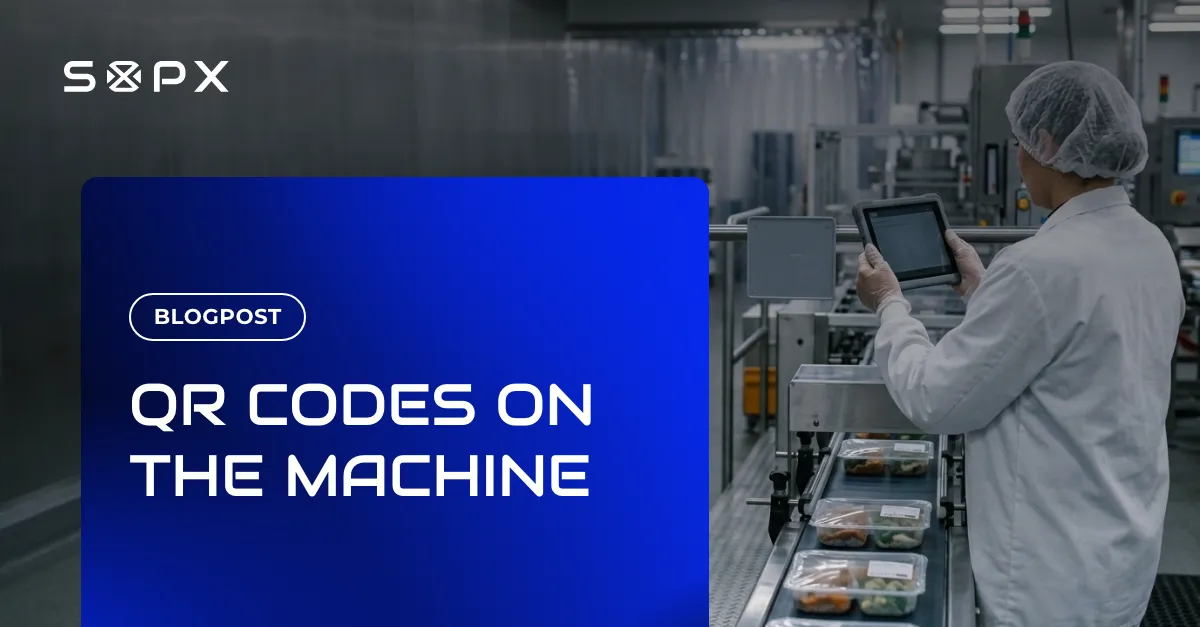
Print a QR code for any SOP or work instruction and mount it at the machine. Label carries the title and Document ID, Badge is the branded code alone, Plain is the bare code.
TL;DR
You can now choose what a printed QR code looks like before it goes on the machine: three styles, an optional language code, and three sizes, out as a PNG, a direct print, or a print-ready PDF.
- Label prints the title and Document ID under the code. Badge is the branded code alone. Plain is the bare code.
- Optional two-letter language code, so codes for the same SOP in different languages are not identical squares.
- Sizes: card (credit card), A6 (machine label), A5 (line board).
- The branding add-on puts your logo and colors on every code.
Why the printed code matters
A work instruction that is correct, approved, versioned, and three rooms away gets skipped. Every metre between the job and the document is a reason to do it from memory instead.
A code on the machine removes that distance. But once printed, it is a physical object. Six identical black squares on six machines tell an operator nothing, and a code sized for a screen is unreadable at arm’s length under plant lighting.
Whether your site calls these SOPs or work instructions (the difference is smaller than most people think), the fix is the same.
Three styles
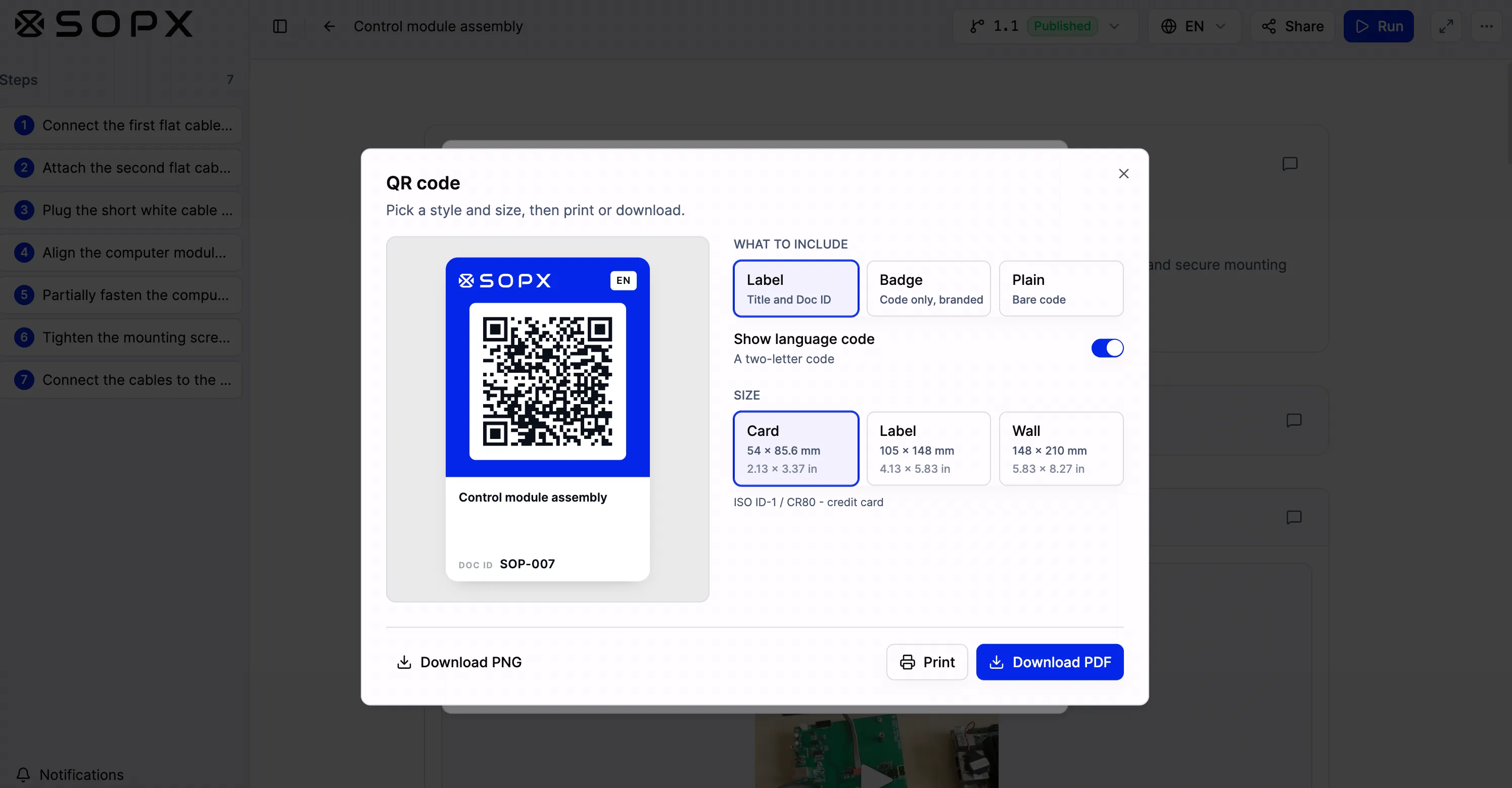
- Label. Code plus the procedure title and its Document ID. Readable without scanning, and your controlled document number ends up on the shop floor rather than only in the system. This is the one most teams want.
- Badge. Branded code on its own, for when the placement already says what it opens.
- Plain. Bare code, for dropping into an equipment placard, shift board, or run sheet somebody else designed.
- Language code. An optional two-letter marker in the corner. On a floor running three languages, it is the difference between three codes and three codes you can tell apart.
Sizes and where they go
| Size | Dimensions | Where it goes |
|---|---|---|
| Card | 54 × 85.6 mm (ISO ID-1) | Badge holder, toolbox, trolley, mould or fixture |
| Label | 105 × 148 mm (A6) | On the machine, beside the control panel. The common one |
| Wall | 148 × 210 mm (A5) | Line board, wash-down, CIP, or chemical dosing station |
Rule of thumb: if it has to be scanned from more than about a metre away, go A5.
A code earns its place where somebody is about to do a specific task, not where they happen to be standing. A code on a door gets ignored. A code at eye level on the machine you are about to change over gets scanned.
Then take a PNG, print straight from the browser, or hand a PDF to whoever runs your label printer.
What the operator gets
They land on the current published version, not the one that was current when someone printed the binder in March. Publish a new version and the code still points at the right document, so nothing on the machine needs reprinting.
That is why printed work instructions lose trust and a printed code does not. The code is a pointer, not a copy.
Getting the SOP in front of someone is half the job. Run mode is the other half. Attach forms and checklists to individual steps and the operator confirms each one as they go, with an optional note and signature at the end. That leaves a record the work instruction was followed, not just published.
Frequently asked questions
Do QR codes work for work instructions as well as SOPs?
Yes. In SOPX both are the same object, a procedure with steps, a version, and an owner. Whether you call it an SOP, a work instruction, or an SWI, it gets a code the same way.
What happens to the printed code when the procedure changes?
Nothing, which is the point. The code points at the published procedure rather than a fixed version, so publishing an update changes what the scan opens. The label stays on the machine.
Can we put our own logo on the code?
Yes, with the branding add-on on the Enterprise plan. Your logo and brand colors replace the SOPX ones on every code, which matters when contractors or customers scan them.
Does the Document ID appear on the printed code?
On the Label style, yes. The title and Document ID both print under the code, so a controlled document number is visible at the machine and not just in the system.