

Run Mode: Execute an SOP as a Checklist Workers Complete and Sign

Run mode attaches forms and checklists to individual SOP steps, so workers confirm each one as they go and sign off at the end. You get proof the procedure was actually followed.
TL;DR
A written SOP tells someone what to do. Run mode turns that SOP into an interactive checklist the worker completes as they work: confirm each step, enter a value or a photo where you need one, and sign off at the end. You get a record of every run, so you can see the procedure was followed, not just published.
- Attach forms and checklists to specific steps, so workers confirm and capture data at the exact point it matters.
- Choose from 10 field types, including text, number, yes/no/na check, date, choice, dropdown, multi select, image, and signature.
- Every run can end with an optional note and a signature, giving you evidence the procedure was actually executed.
- Available on every plan, including the free trial.
The problem: a published SOP is not a followed SOP
You can write a perfect procedure, publish it, and still have no idea whether anyone follows it. A document sitting in a folder does not tell you if the machine was checked, the temperature was logged, or the safety step was done. When something goes wrong, “we have an SOP for that” is not the same as “here is the record showing it was done.”
The gap is between the instruction and the execution. Run mode closes it.
What Run mode is
Run mode lets a worker run an SOP instead of just reading it. The procedure becomes a guided checklist, one step at a time, with fields to fill in where the task needs a record. When the run is finished, it is saved, with who ran it, when, and whatever they entered along the way.
You decide which steps need a field and which are just “read and confirm.” A simple procedure can be a plain checklist. A regulated one can capture readings, photos, and a signature.
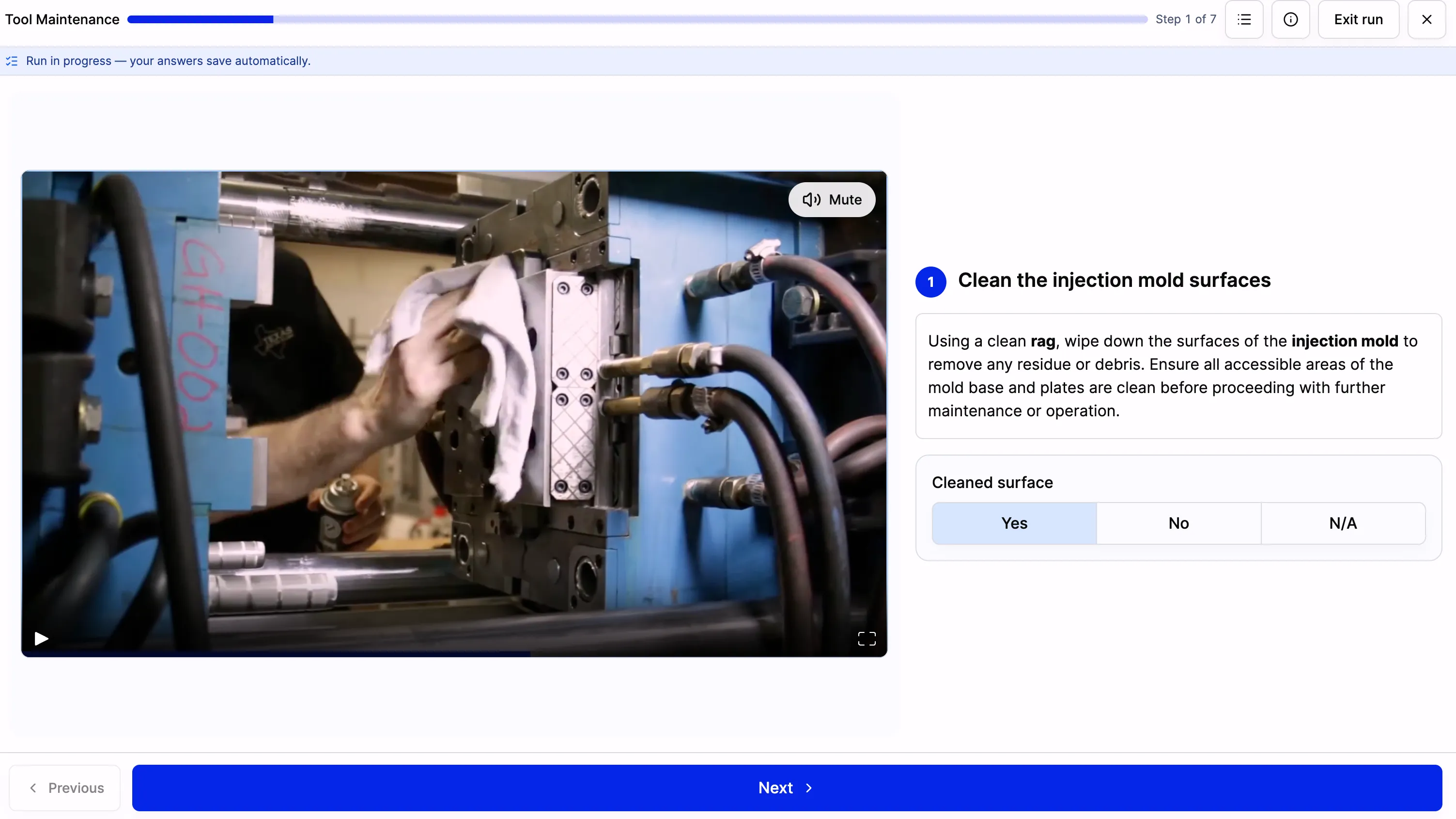
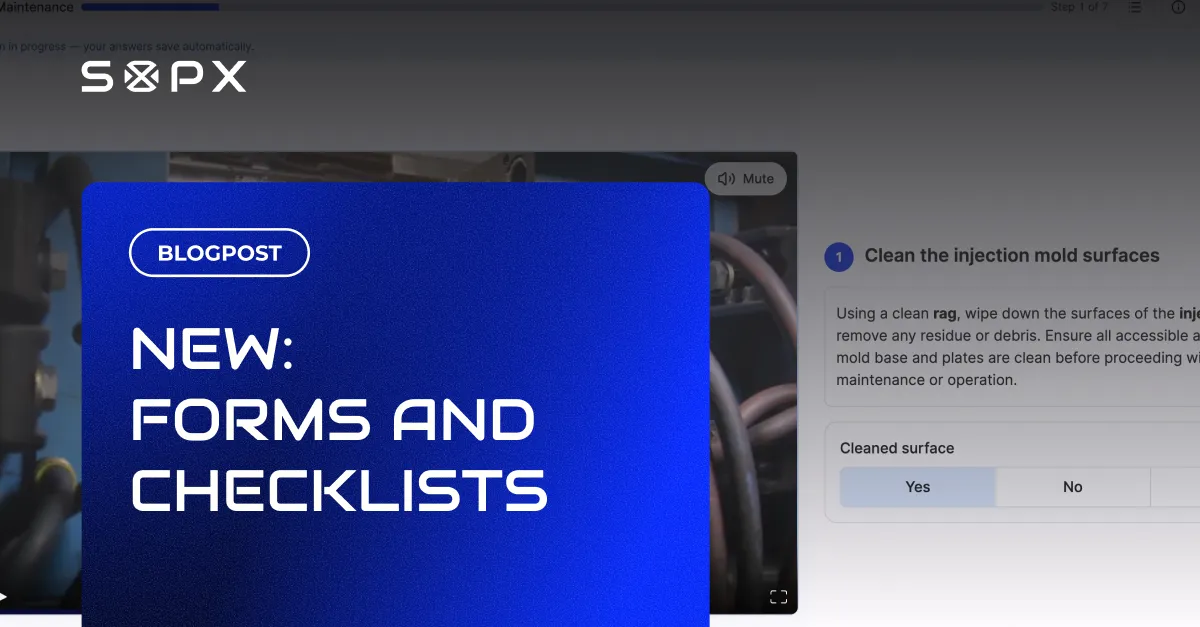
Each step can carry a checklist. Here the worker watches the step video and marks the cleaning check before moving on. Answers save automatically as the run progresses.
The 10 field types
Attach any of these to a step:
- Text and number for free entry and measured values
- Yes / no / na check for pass-fail confirmation
- Date, choice, dropdown, and multi select for structured answers
- Image to capture a photo as proof
- Signature to sign off
Each run can also end with an optional note and a signature, so the whole procedure carries a clear sign-off.
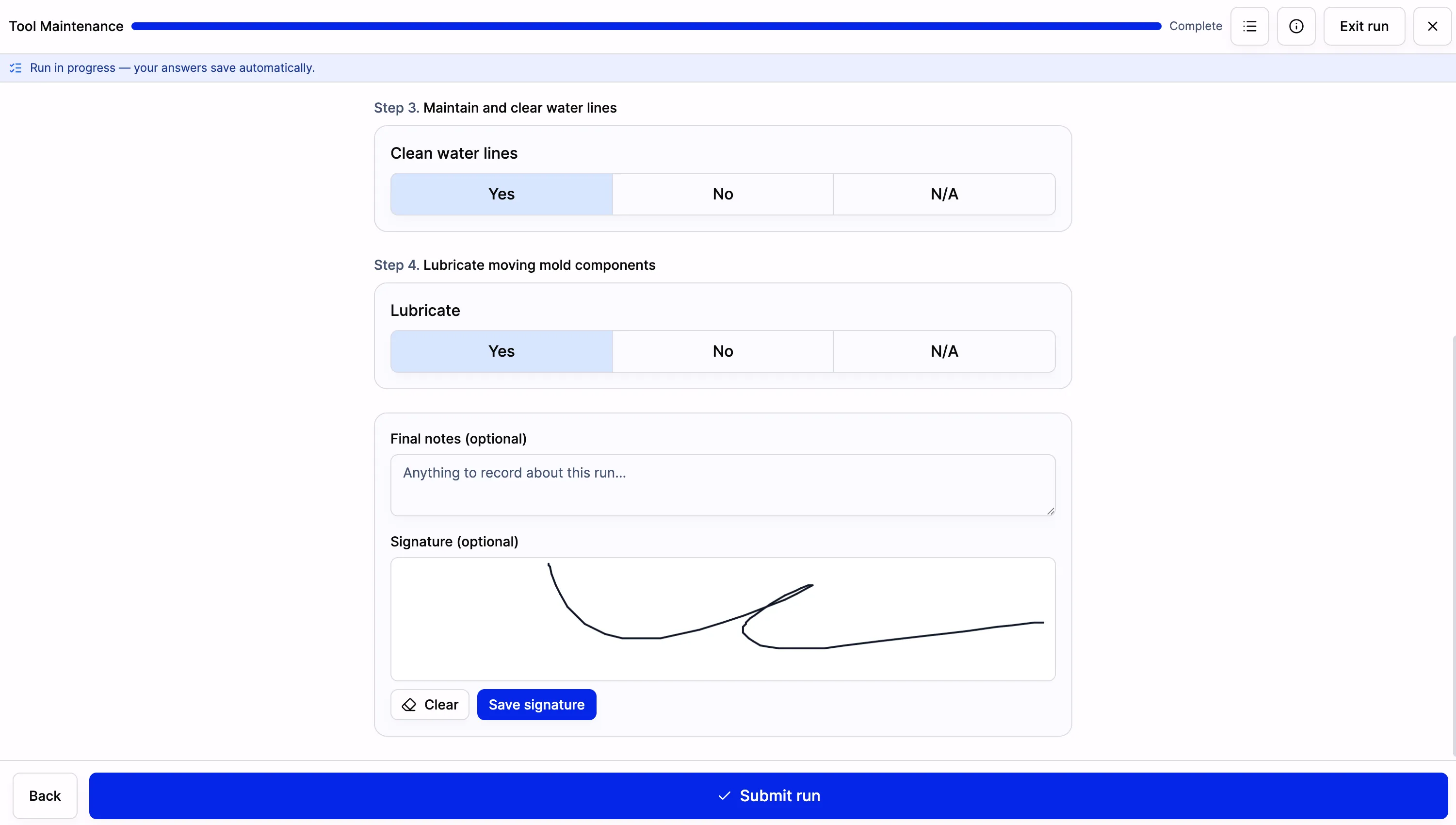
At the end of a run, the worker can add a final note and sign, then submit. That signature is what turns a completed run into a record you can stand behind.
Who it helps, and the pain it removes
Quality and compliance
Regulated teams need evidence, not promises. With Run mode, a quality or compliance check produces a completed, signed record every time it runs. That record holds the reading that was taken, the box that was ticked, and the person who signed. When an auditor or customer asks for proof, you have it, instead of reconstructing it after the fact. This pairs naturally with ISO 9001 document control, where the “retained” record is exactly what the standard expects.
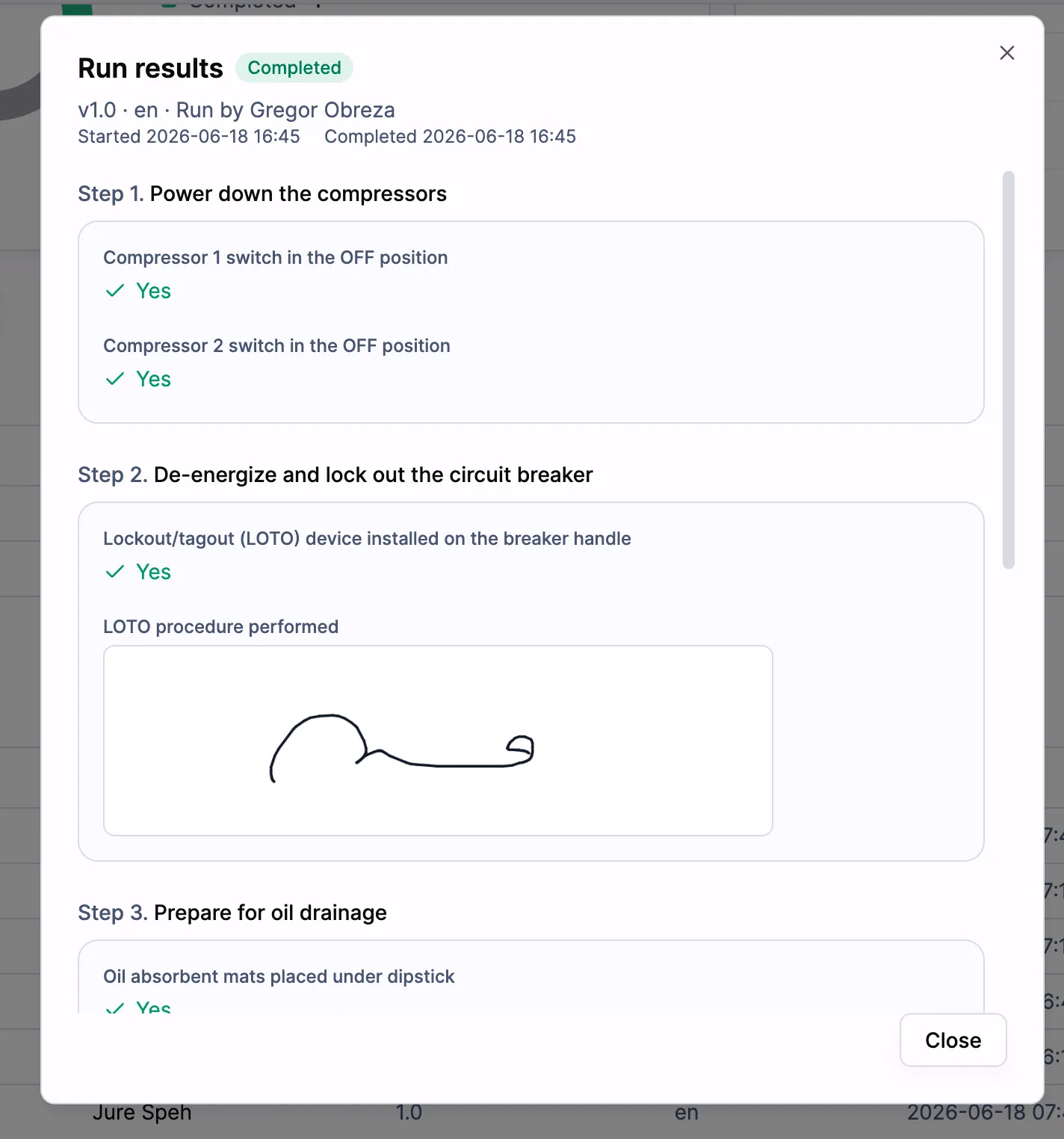
A completed run keeps every answer, who ran it, when it started and finished, and any signatures. This is the record you open when someone asks you to prove the procedure was done.
Safety
A safety procedure is only useful if it is actually performed. Run mode makes a lockout check or a pre-start inspection an active step the worker confirms, with a photo or a signature where it counts, so a skipped step is visible instead of silent.
Food production
On a food production line, temperature logs, cleaning checks, and HACCP steps have to be recorded across every shift. Run mode captures them at the workstation as the work happens, in a consistent format, without a clipboard that gets lost or filled in from memory at the end of the day.
Training and onboarding
For a new hire, a work instruction with a checklist is a guardrail. They follow the steps in order and confirm each one, so nothing gets skipped while they are still learning. You can see they completed the run, which tells you more than “they watched the video.”
The benefit in one line
Run mode moves an SOP from a document you hope people read to a task people complete and sign, with a record to prove it. That record is what turns a procedure into evidence, and evidence is what compliance, safety, and quality all run on.
To see how those records add up across your team, pair Run mode with SOP analytics, which shows who ran what and lets you review results in one place.
Frequently asked questions
What is Run mode in SOPX?
Run mode lets a worker execute an SOP as a guided, step-by-step checklist. You attach forms to the steps that need a record, the worker confirms and fills them in as they go, and the completed run is saved with an optional note and signature.
What can each step capture?
Any of 10 field types, including text, number, a yes/no/na check, date, choice, dropdown, multi select, an image, and a signature. You add a field only to the steps that need one; the rest are read-and-confirm.
Does Run mode prove a procedure was followed?
It gives you strong evidence. Each run records who ran it, when, what they entered at each step, and an optional end-of-run note and signature. That completed record is the proof that the steps were done, in order, by a named person.
Which plans include Run mode?
Run mode is available on every plan, including the free trial. See the pricing page for details.
Ready to try it? Start free, open a procedure, add a checklist to a few steps, and run it once. That single completed run shows you what execution proof looks like.