

Approval Flow and Procedure History: SOP Document Control

SOPX now adds an optional approval step before a procedure goes live, an automatic history of every version, and a Document ID for each procedure, so you get document control without the paperwork.
TL;DR
SOPX adds three features that turn a procedure from a page into a controlled document. The approval flow is an optional sign-off step: nothing publishes until an approver approves it. Procedure history is an automatic, read-only record of every version, who changed it, and why. A Document ID gives each procedure the unique reference number auditors expect. Together they cover what ISO 9001 document control asks for, with no binder and no spreadsheet.
- Approval flow is off by default. Turn it on and a new version follows a clear path: draft, submit for review, then approve and publish or request changes.
- My Reviews gives every approver a personal queue with a badge for what’s waiting on them.
- Procedure history records the full life of a procedure: created, submitted, approved, changed, published, restored, each with a name and timestamp.
- Document ID is a free-text identifier like
SOP-PROD-014that follows a procedure across every version and language. - Approval flow and procedure history are on Pro and Enterprise; Document IDs are on every plan.
The problem: a procedure is a controlled document
A good SOP isn’t a throwaway note. It’s the official way a job gets done, and sooner or later someone asks the hard questions. Who approved this? When did it go live? Why did we change step 3? What did the previous version say?
By default, anyone who can edit a procedure can also publish it. For a lot of teams that’s exactly right, fast and frictionless. But for a quality-minded shop in manufacturing, food production, or anything touched by ISO 9001 or GMP, a procedure that goes live without review is precisely the thing an auditor flags. Those teams need two things. They need a checkpoint before publishing, and a record that proves what happened.
SOPX now has both, plus the identifier that ties it all together.
Approval flow: a second set of eyes before publishing
The approval flow is an optional review-and-sign-off gate in front of publishing. When it’s switched on for your organization, a new version can’t just be published. It has to be submitted for review, checked by an approver, and only goes live once that approver approves it.
It’s designed to be light. Publish in minutes when you don’t need control, and turn on real sign-off when you do. It’s off by default.
The lifecycle
The heart of the feature is a short, clear path that every version travels:
- Draft. The author writes or edits the procedure. It isn’t visible to viewers yet.
- Submit for review. The author picks an approver and submits. The version moves to In review and becomes read-only, so the approver signs off on exactly what will publish. The author can Withdraw at any time to pull it back to draft and keep editing.
- In review. Waiting on the approver’s decision, which has two outcomes:
- Approve and publish. The version goes live immediately, and the previously published version is archived automatically.
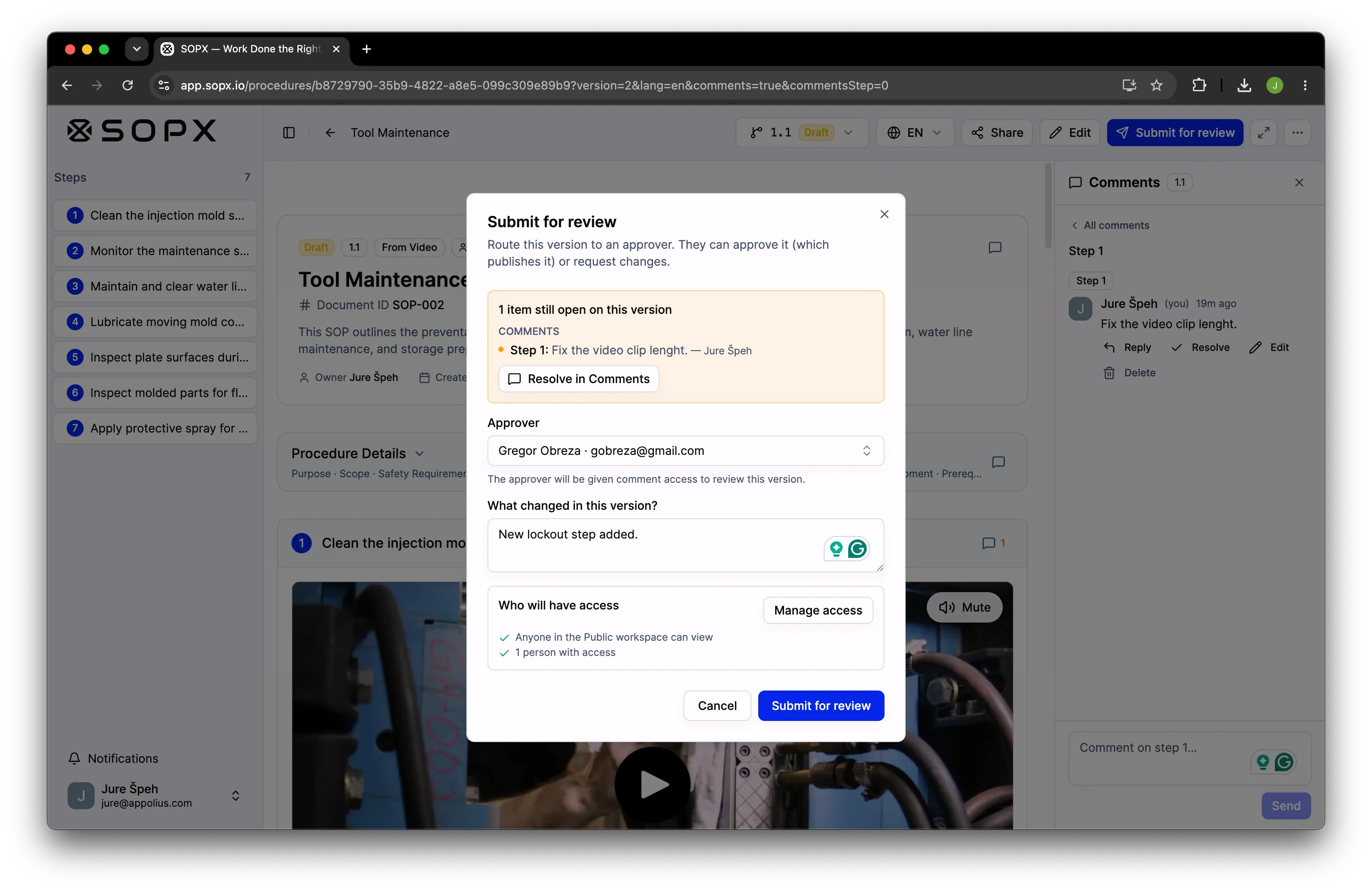
- Request changes. The approver sends it back with a required reason. The version returns to draft, and that reason becomes a tracked comment the author addresses before resubmitting.
When the gate is off, nothing changes. You draft, then publish, directly.
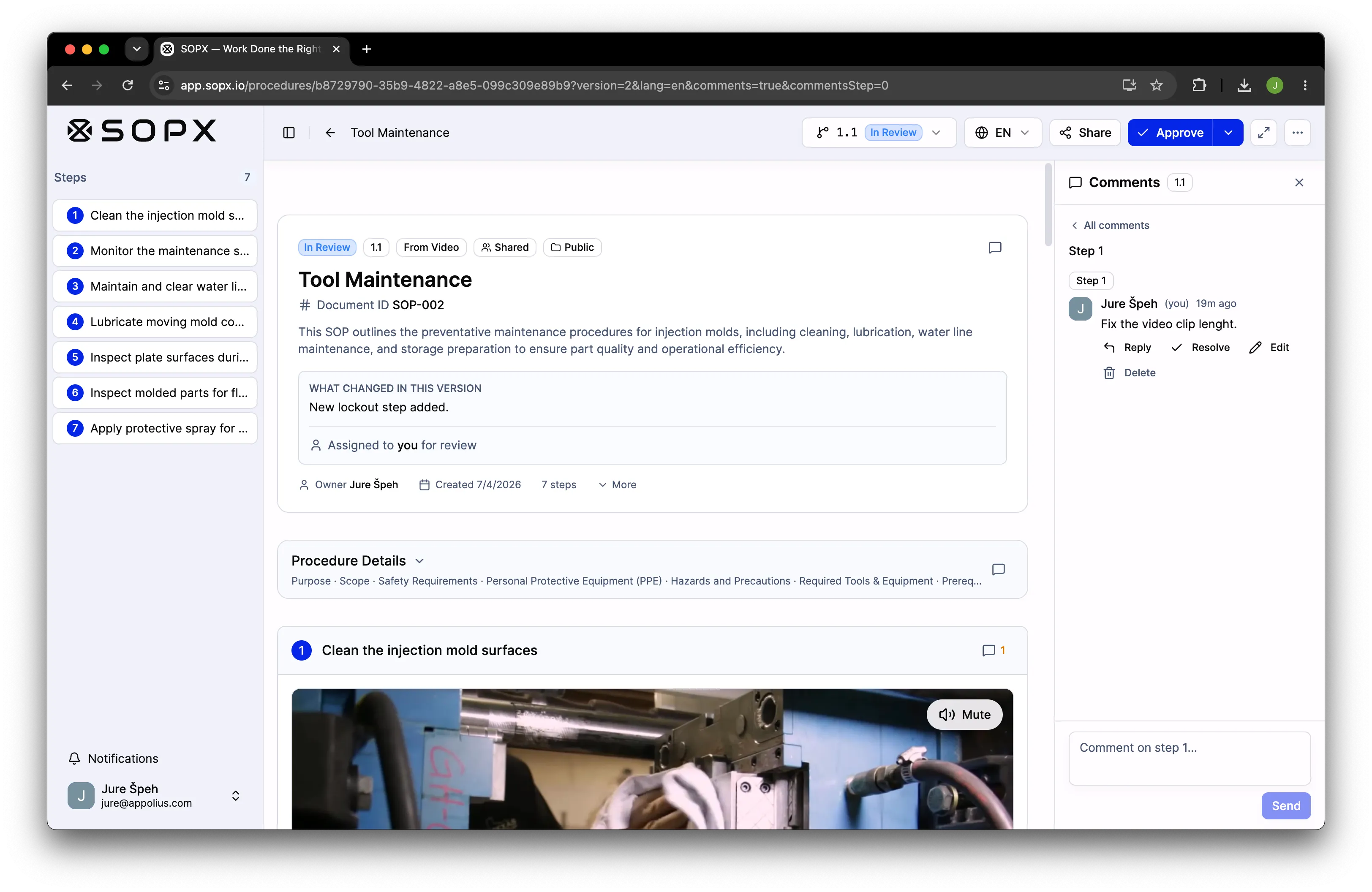
The author picks an approver and submits, and the version locks while it’s in review.
Where you see it
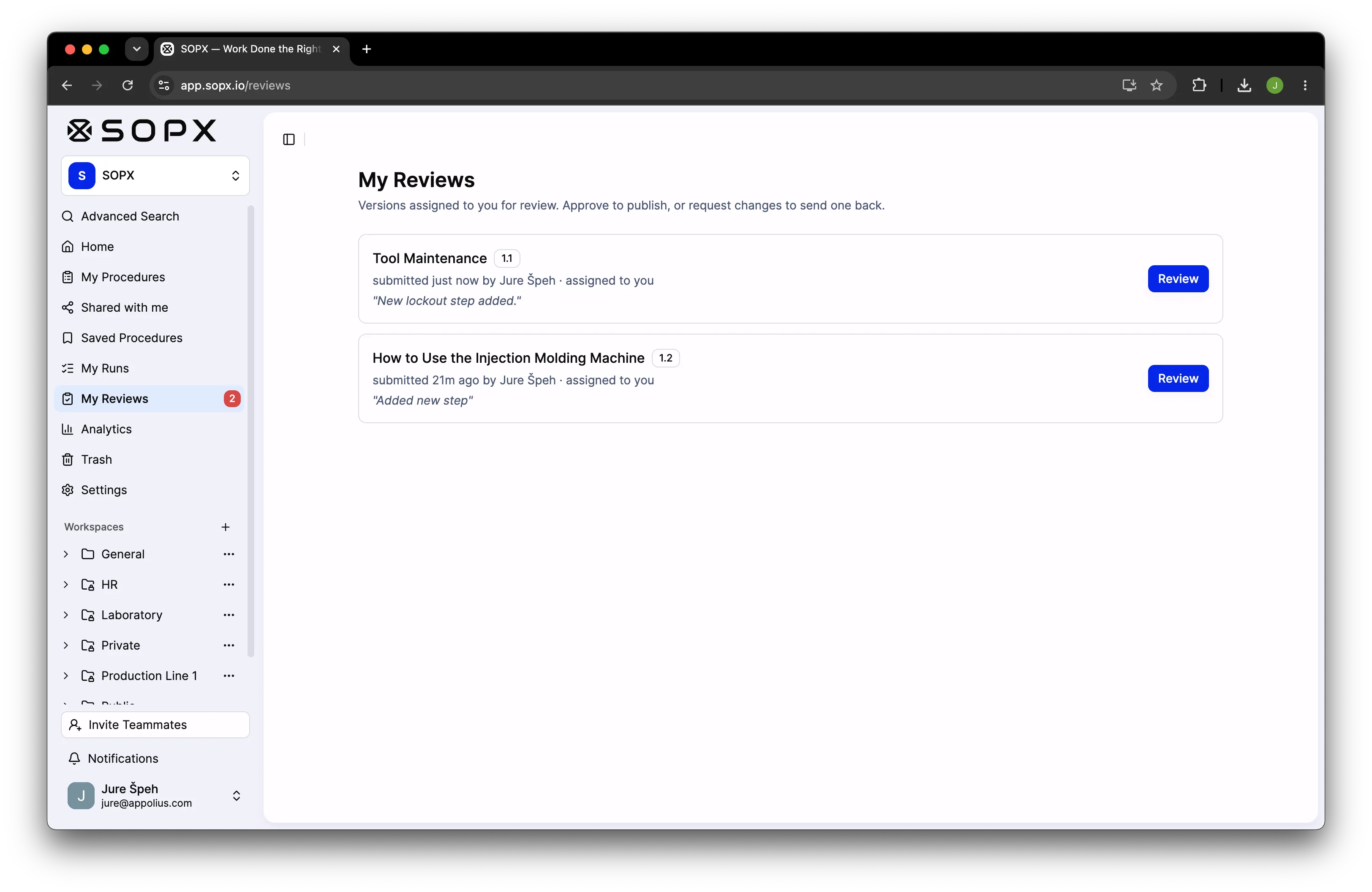
- My Reviews is a personal page, with a sidebar item and a count badge, listing the versions waiting for you to review. Approve to publish, or request changes to send one back.
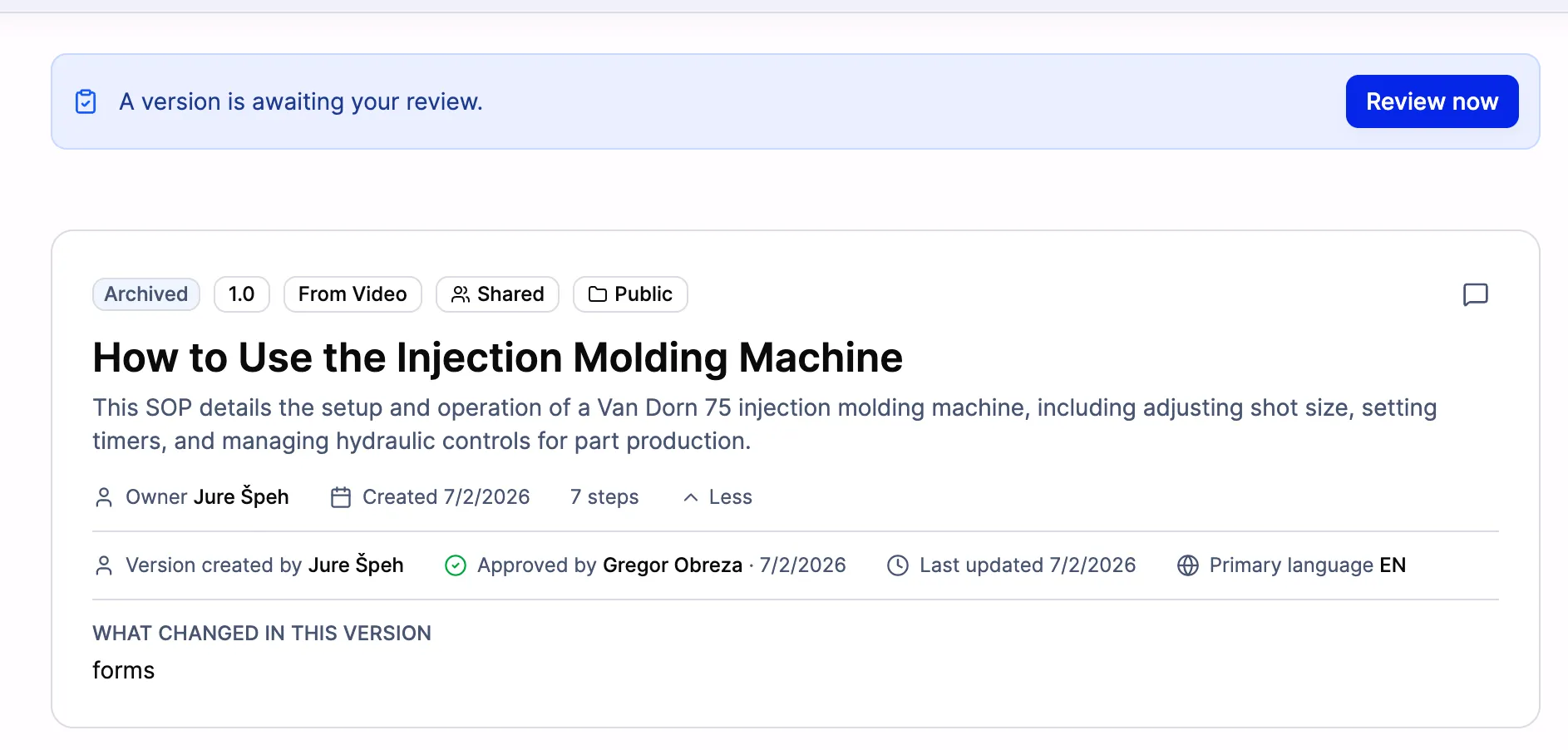
- A “Review now” banner appears on a procedure when a version is routed to you, with a button that jumps straight to the version awaiting your review.
- Attribution shows in the procedure header: “Assigned to {name} for review” while it’s in review, and “Approved by {name} · {date}” once it’s live.
Who can do what
Two different ideas are involved here, and it’s worth getting them right.
- Who can submit? Anyone with edit access to the procedure. Submitting isn’t publishing, it’s asking someone else to publish, so it doesn’t require publish rights.
- Who can approve? Organization owners and admins are always approvers, automatically. Beyond them, an admin can designate any member as an approver on the Approval settings tab.
Submitting routes a version to one chosen approver, the person who sees it in their My Reviews and banner. But any eligible approver, and always an owner or admin, can step in if that person is away. Nothing gets stuck because one reviewer is on holiday.
Separation of duties is optional. An admin can turn on “Require a different approver.” When it’s on, you can’t approve your own version, so the person who wrote it and the person who signs it off must be two different people (the classic four-eyes principle). When it’s off, the default, a solo operator or small team is never blocked, but a self-approval is still recorded as a real approval, never a silent auto-publish.
The approver gets access automatically
Approvers often have no prior access to the procedure they’re asked to review, and a brand-new procedure might even be private. So the moment a version is submitted, SOPX does one automatic thing to make review possible. It gives the assigned approver comment access to the procedure, and if the procedure was private, it shares it first so that access takes effect.
When you submit, SOPX tells you up front that the approver will be given comment access to review the version. That access is visible in the sharing list and stays there after the decision, where the owner can adjust it. Nothing mysteriously appears and disappears.
A concrete example
Dev updates the “Line 2 Startup” procedure and clicks Submit for review, choosing Boris as the approver and noting “New lockout step added.” The version locks and lands in Boris’s My Reviews, and Boris also sees a Review now banner on the procedure. Boris reads it, isn’t happy with the wording of the new step, and clicks Request changes: “Reference the lockout tag color.” It bounces back to Dev as a tracked item. Dev fixes it, resubmits, and this time Boris clicks Approve and publish. The new version goes live, the old one is archived, and the header now reads “Approved by Boris.”
Procedure history: the audit trail, written for you
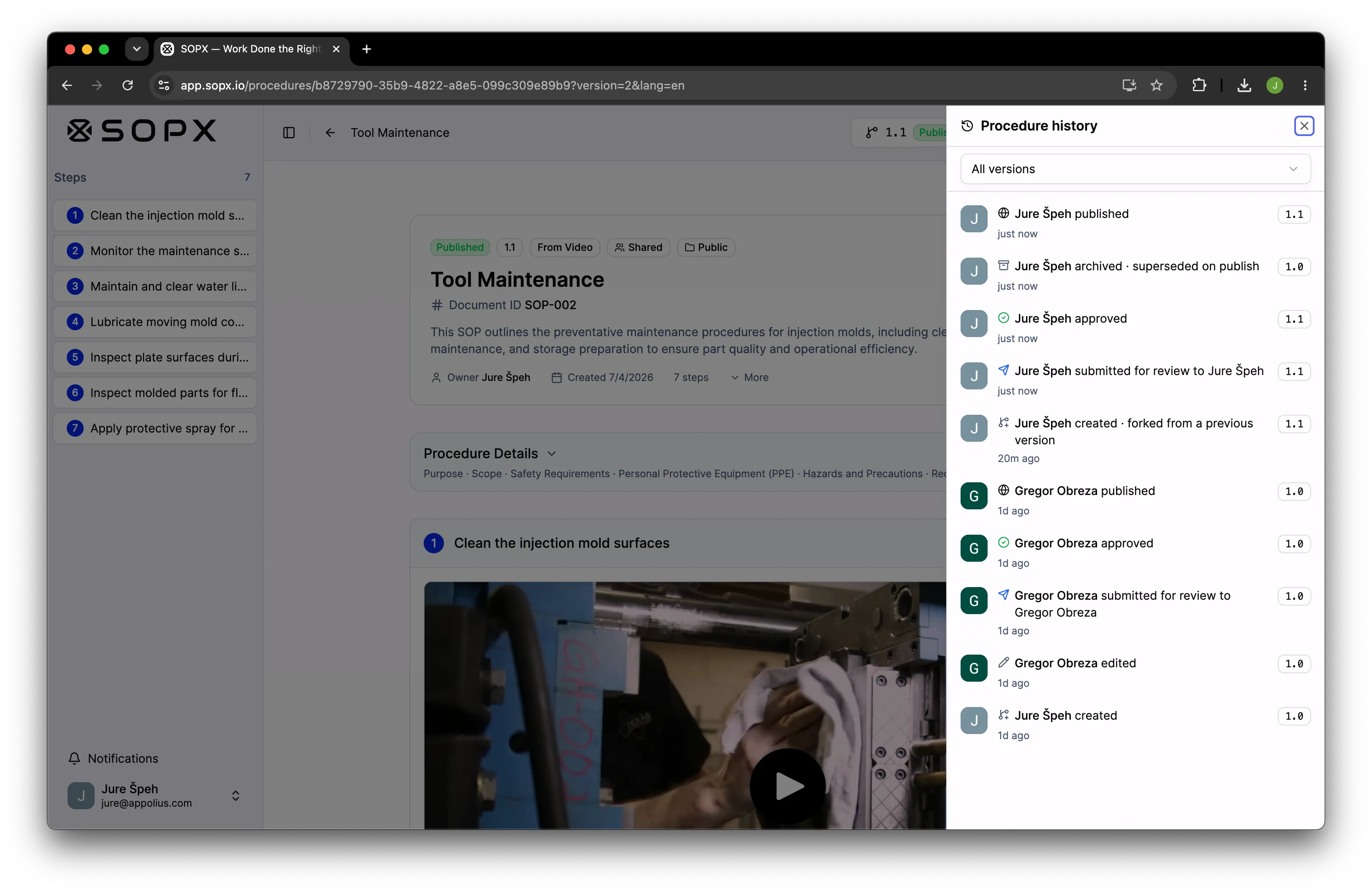
Procedure history is a read-only timeline of everything that has ever happened to a procedure, across all of its versions. It’s the audit trail. Created, submitted, approved, sent back, published, restored, and each entry shows who did it, when, and any note they left. Nothing is written by hand. The system records it as work happens, and the history simply shows it.
Opening it. From a procedure’s ⋯ (more) menu, choose Procedure history. A panel opens on the side showing every event, newest first. When a procedure has more than one version, a filter narrows the timeline to a single version.
What gets recorded. The timeline captures the full life of a procedure:
- Created, when a new version was started, often forked from a previous published version.
- Submitted for review, sent to a named approver, with the author’s note.
- Approved, signed off, with any note.
- Changes requested, sent back, with the required reason.
- Withdrawn, when the author pulled a submission back to draft.
- Published, when it went live.
- Reverted or restored, when an older version was brought back.
- Archived, when superseded by a newer published version.
- Edited, grouped per editing session so the log stays readable.
- Translations added or edited, when a language version changed.
- Document ID changed, when the compliance identifier was set or updated.
Viewing and restoring. You can switch to and read any past version, and Restore an archived one, which re-publishes it and records a “reverted” entry. So even bringing back an old version is captured in the trail.
Who can see it
Procedure history is for the people who build and own procedures. It’s visible to editors and above (Can edit and Can manage). People with Can view or Can comment don’t see the history trail. They see the current published procedure, not the behind-the-scenes lifecycle of drafts, submissions, and sign-offs. This keeps internal review activity out of view for frontline readers, matching how comments work.
A concrete example
An auditor asks Priya to prove that the “Chemical Handling” procedure currently in use was properly reviewed. Priya opens Procedure history and reads it straight down: “Dev created v4, forked from v3,” “Dev submitted v4 for review to Boris: ‘Updated PPE section,’” “Boris requested changes: ‘Add eyewash station location,’” “Dev submitted v4 again,” “Boris approved v4,” “v4 published, v3 archived.” Every step, every name, every timestamp. No spreadsheet required.
Document ID: the reference number auditors ask for
A procedure without an ID is just a page. A procedure with SOP-PROD-014 on it is a controlled document, one you can cite in a work order, point to in an audit, and cross-check against your quality manual.
If your organization is chasing or keeping an ISO 9001 certification, you’ve met “document control.” It’s Clause 7.5 of the standard, and one of the most common places audits go wrong. In plain terms, document control says every controlled document has to be identifiable: a clear title, a unique reference number, and a revision level, so there is never any doubt about which document and which version is the current, official one.
Document ID is an optional, free-text identifier you attach to a procedure, for example SOP-PROD-014, HR-ONB-002, or whatever convention you already use. A few things make it practical:
- Set it once on the procedure. Type your identifier into the Document ID field in the header. It saves as you go.
- It carries across versions automatically. The ID is attached to the procedure itself, so it stays the same across every version and language. Revision 1 and revision 7 share one Document ID; the version number changes, the identity doesn’t.
- Use your own numbering. The field is free text, so it matches whatever scheme you run. SOPX doesn’t impose a format.
- A soft duplicate check. If you type an ID another procedure already uses, you get a gentle inline heads-up (“Also used by ‘{procedure title}’”), so you can catch a clash. It’s only a warning; it never blocks you from saving, because imports and renumbering shouldn’t be a fight.
And it isn’t only for ISO. Food production under GMP, medical devices, and aerospace all expect the same thing. Each one wants a stable identifier that follows a procedure through every revision.
Put together: document control without the paperwork
These three features are the two halves of document control plus the glue between them. A Document ID answers which document is this? Procedure history answers which revision is current, and how did it get here? And the approval flow makes sure the answer to who signed it off? is a real name, not a shrug.
An ISO 9001 auditor points at a laminated instruction on the line and asks Sofia to prove it’s controlled. Sofia opens the procedure in SOPX. The header shows Document ID SOP-PROD-014 and the current revision, and Procedure history shows the full trail, drafted, reviewed, approved by the quality lead, published. One identifier, one clean record. No binder, no “let me find the master copy.”
Good to know
- Approve equals publish in one step today. There’s no separate “approved but not yet in effect” state yet.
- One approver per version on Pro. The Enterprise plan adds multi-step approval, where a version passes ordered review stages such as QA and HSE. There is no electronic-signature re-authentication (21 CFR Part 11 style) yet.
- No side-by-side compare view yet. History tells you that a version changed and why, but doesn’t yet show a step-by-step diff between two versions. That’s planned.
- The duplicate ID check is a warning, not a rule. SOPX won’t stop two procedures from sharing an ID, because organizations import and renumber.
- Plans. Approval flow and procedure history are Pro and Enterprise features, and both are downgrade-safe: an org that later drops to a lower plan can still publish directly, and anything already in review stays resolvable. Document IDs are available on every plan.
Getting started
If you run a quality system, three quick steps get you to real document control:
- Turn on the approval flow in your organization settings and designate your approvers. Add “require a different approver” if you need four-eyes separation.
- Give your key procedures a Document ID that matches your existing numbering.
- Point auditors at Procedure history instead of a paper binder.
Approval flow and procedure history are available now on Pro and Enterprise, and Document IDs are on every plan. Sign up or log in to get started.