

Comments on SOPs: Discuss a Procedure Where the Work Happens

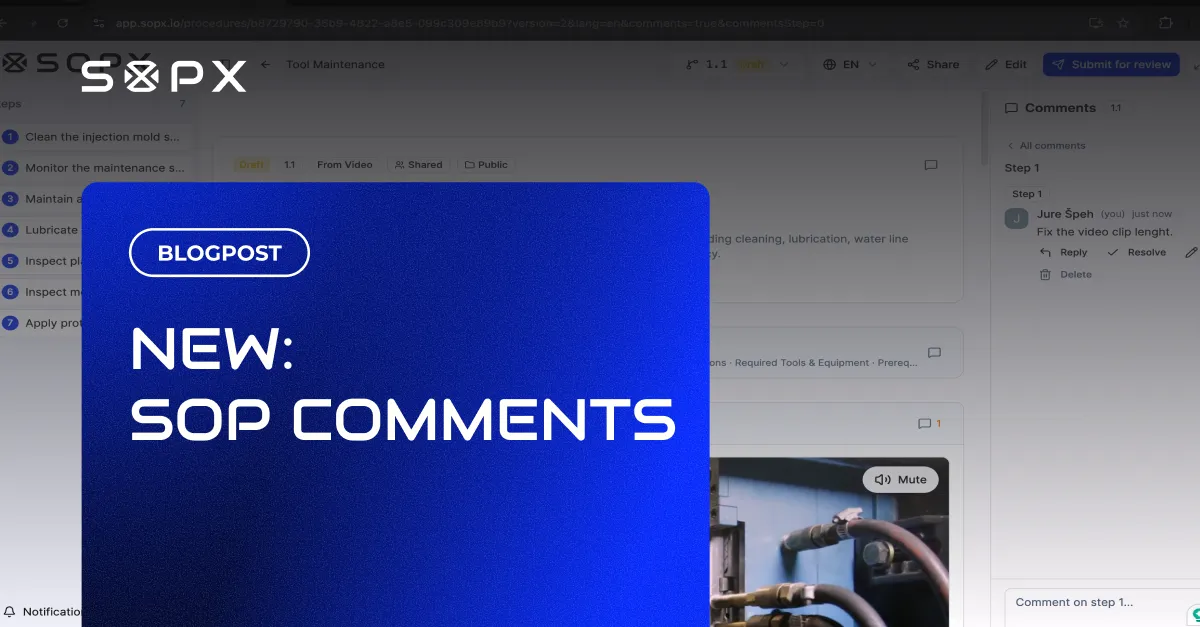
Every SOPX procedure now has a built-in comment thread. Leave feedback on the whole procedure, a single step, or the details, reply in threads, and resolve when it's handled. Included on every plan.
TL;DR
Every SOPX procedure now has a built-in comment thread. Leave feedback on the whole procedure, a single step, or the Procedure Details, reply in threads, and mark a thread resolved when it’s handled. Comments unlock at the Can comment access level, so frontline staff can flag a problem without being able to edit. You only see comments on the versions you’re allowed to see, so internal review stays internal. Comments are included on every plan.
- Feedback lives on the procedure, not in a Slack message or a hallway conversation that gets lost.
- Comment on the whole version, a single step, or the Procedure Details, wherever the issue is.
- Threads can be replied to and resolved, so it’s always clear what’s still open.
- A reviewer’s “request changes” reason becomes a real, trackable comment thread, not a message that vanishes.
- Included on every plan, not limited to Pro or Enterprise.
The problem: feedback always happened somewhere else
Feedback about a procedure always used to happen somewhere else. A Slack message. An email. A quick word in the hallway. “Step 4 is out of date.” “We changed this supplier.” By the time someone got around to fixing it, the context was gone and nobody could tell whether it had been dealt with.
Comments move that conversation onto the procedure itself, right next to the thing being discussed, so nothing gets lost and everyone can see what’s still open.
What it is
Comments are a lightweight, built-in discussion layer on every procedure. They work the way you’d expect from Google Docs or Notion. There is a panel on the side, threads you can reply to, and the ability to mark a thread resolved once it’s handled.
One system serves three different people, the author writing a procedure, the reviewer checking it, and the frontline worker who just reads it and spots something wrong.
How it works
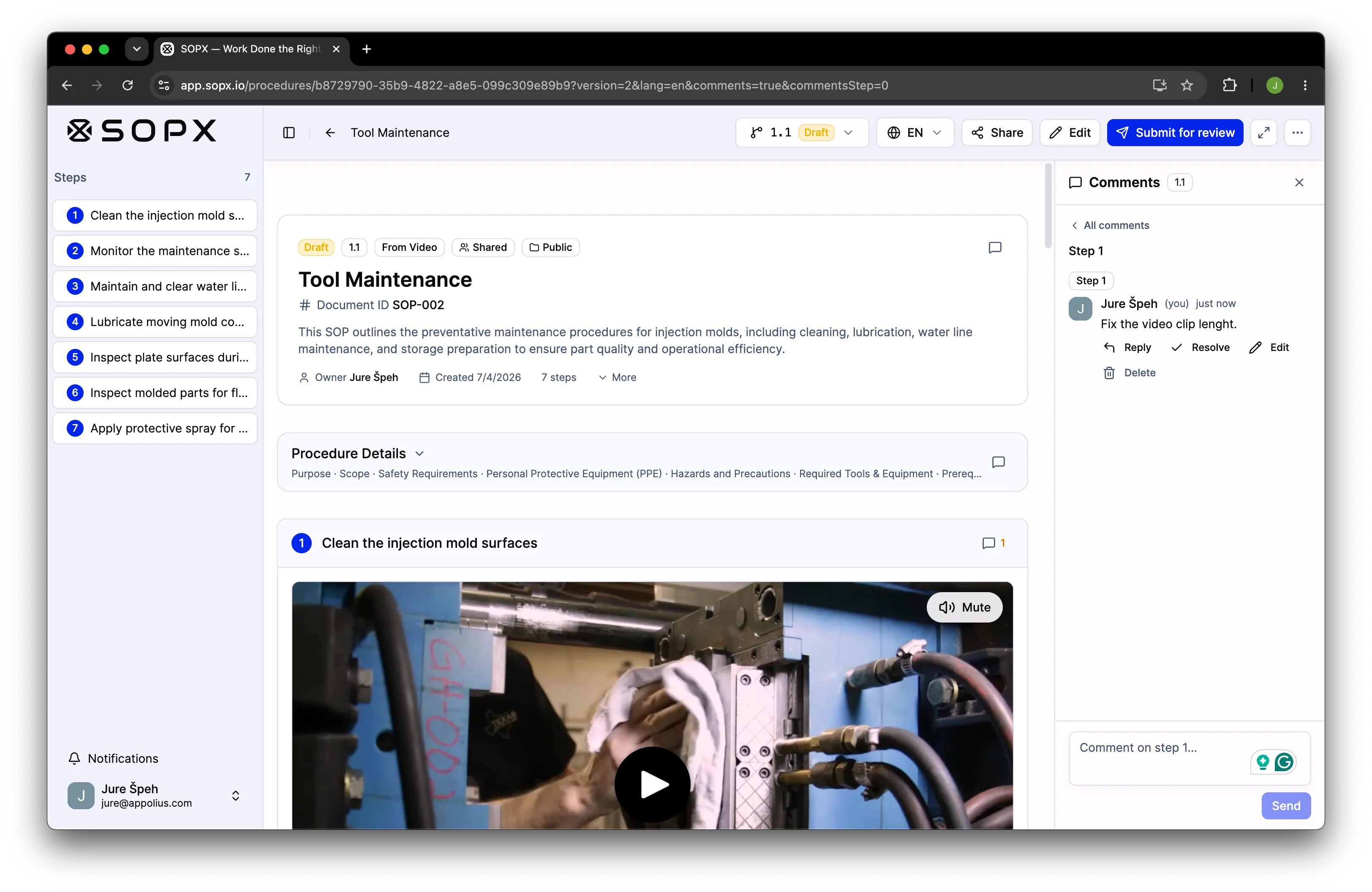
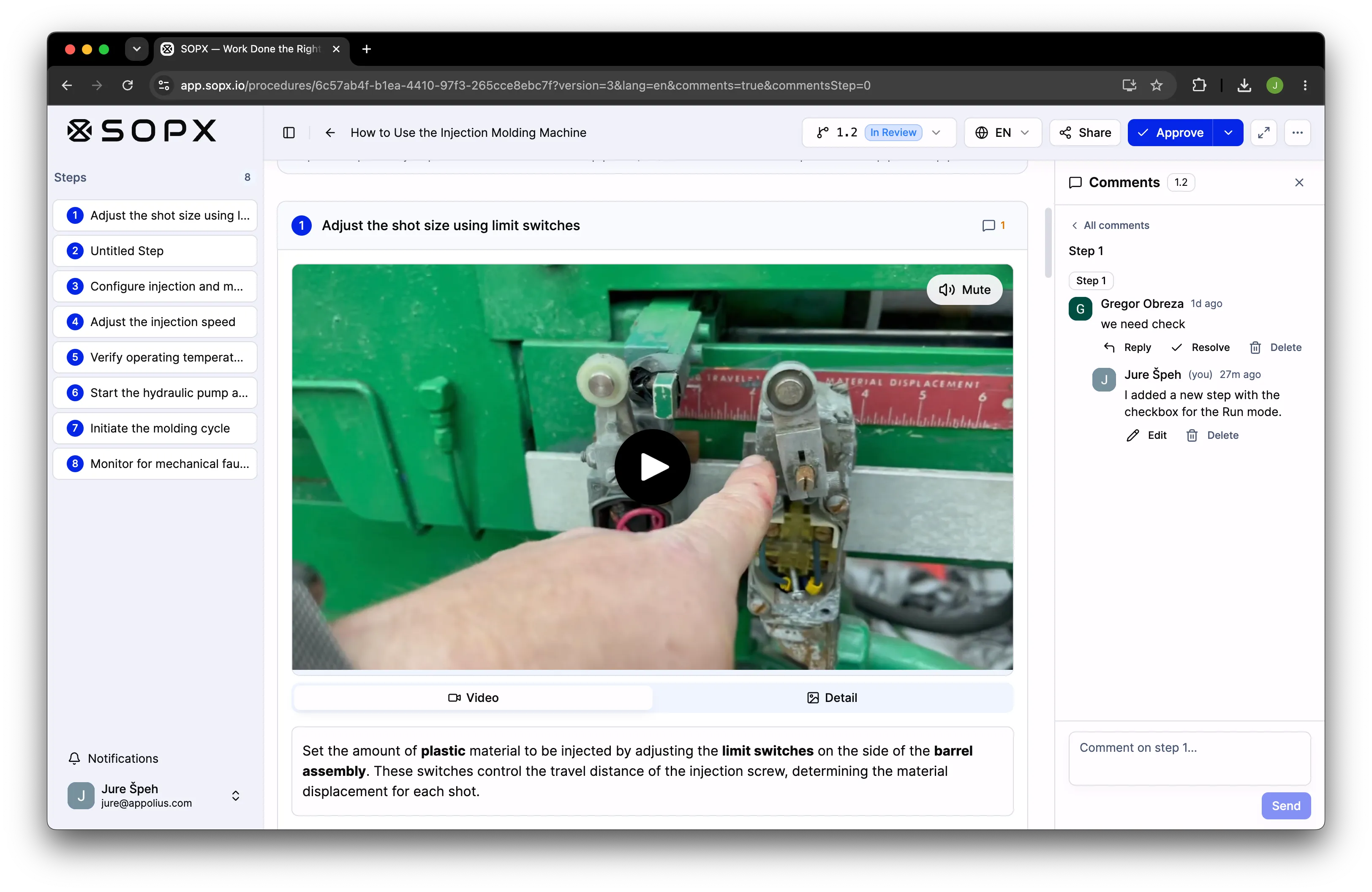
Where comments live. Comments open in a rail on the right of the screen, and on a phone they slide in from the side. The panel is tied to the version you’re currently looking at, so you’re always seeing the conversation about this version of the procedure.
What you can comment on. A comment can attach to one of three places:
- The whole version, for a general note about this version of the procedure.
- A single step. Each step shows a small comment icon with a count; click it to open the thread for just that step.
- The Procedure Details, the block at the top with the overview and metadata.
Threads and replies. Every comment can be replied to, one level deep, like a mini thread. A reply lives under its parent and is seen by the same people who can see the parent.
Resolving. When a discussion is handled, resolve the thread to tuck it away, and reopen it later if needed. An editor, the person who started the thread, or a reviewer can resolve it. In the panel, threads are grouped into Changes requested, Comments, and a collapsed Resolved section, so open items are always easy to find.
Who can comment
The access ladder on each procedure runs Can view → Can comment → Can edit → Can manage. Comments unlock at the Can comment level.
- Can view reads the published procedure, but can’t comment.
- Can comment reads the published procedure and can leave comments. This is the level for frontline staff who should be able to flag a problem but not change the procedure.
- Can edit and Can manage can comment as well as edit and, for managers, run everything.
One rule matters most. You can see a comment only if you can see the version it’s attached to. So private review discussion on a draft stays with editors and reviewers, while comments on the published version are visible to everyone with comment access. That’s how one comment system safely holds both an internal review conversation and open frontline feedback without them bleeding into each other.
How it connects to the approval flow, but stays separate
Comments are a standalone feature. A frontline worker can comment on a published procedure without any review process being involved. But comments and the approval flow are wired together at the moments where they naturally overlap:
- When an approver clicks Request changes, their reason becomes a real comment thread, one you can reply to and resolve, instead of a one-line message that disappears. That particular thread is locked because it’s part of the approval record, so it can be resolved but not edited or deleted, and it shows a small lock icon.
- When a new draft is started from a published version that still had open “changes requested” items, those items carry over as context so nothing is silently dropped.
The result is one place for both “please fix this before it goes live” and “hey, this step is outdated,” without needing two different tools.
A concrete example
Maria is a shift lead with Can comment access. She’s following the published “Line 2 Startup” procedure and notices step 6 still references the old torque value. She opens the step’s comment thread and writes: “Torque spec changed to 45 Nm last month, step 6 still says 40.” Dev, an editor, sees it, opens a new draft, fixes step 6, and replies “Fixed in v4, thanks” before resolving the thread. The whole exchange lives on the procedure, and anyone reviewing v4 can see exactly why it changed.
Good to know
Comments in this first release are deliberately simple:
- Plain text only for now, with no rich formatting and no attachments.
- No @mentions yet, so you can’t tag a specific person in a comment.
- Comments don’t send notifications. Leaving a comment or replying doesn’t ping anyone. The only notifications in the product are for the approval flow, which covers submitted, approved, and changes requested.
- Comments are shown per version today. There’s groundwork for a cross-version, whole-procedure discussion, but it isn’t switched on in the interface yet.
- Comments are included on every plan. They’re not limited to Pro or Enterprise.
Getting started
If you already have SOPs in SOPX, comments are already there. Open any procedure, click a step’s comment icon or the panel, and leave your first note. Give your frontline staff Can comment access on the procedures they follow, and the feedback that used to disappear into chat starts landing exactly where it can be acted on.
Comments are included on every SOPX plan. Sign up or log in to get started.