



Product & Company ·
SOP Training Records in Manufacturing: Assign and Sign Off
SOPX now has training built in. Put SOPs in a training path, assign it to people or teams, and collect a signed Read & understood for each version. Download the training record when the auditor asks.

Table of contents
TL;DR
Training is now built into SOPX. Put your published SOPs in a training path, like New starter: Production floor. Assign it to a person or a whole team, with a due date. People read each SOP step by step and click Read & understood. They can also draw a signature. SOPX saves who confirmed, which version, when, and in which language. When the SOP changes, tick Requires retraining and everyone reads the new version again. When an auditor asks, download a training record as a PDF, or export all records as a CSV. Training is on every plan, and people who only read and sign are viewers, included at no extra cost.
- Training paths. An ordered list of SOPs. Turn on Complete in order so people confirm them one by one.
- Assign to people or teams. A team assignment also covers anyone who joins the team later.
- Read & understood. Each confirmation names the exact version, for example “version 2.0”.
- Retraining. A new version can ask everyone to read it again. Old confirmations stay on record.
- Proof on demand. A PDF record per person and a CSV of every confirmation.
”Did they read it?” should take seconds to answer
A procedure only helps if people know it. Most teams know this. The hard part is the proof.
Today the proof is often a paper sheet with signatures. Or a spreadsheet. Or an email that says “please read this”. Then three things go wrong:
- The SOP changes. Nobody knows who read the old version and who read the new one.
- The auditor asks. “Show me this operator’s training.” It takes a day to find the sheet.
- The training lives somewhere else. You upload the same content into a second system. Now you keep two copies in sync.
We built training into SOPX because our customers asked for one place for both. The SOP and the proof that people read it now live side by side.
| The question | Before | With SOPX training |
|---|---|---|
| How do I give people the SOPs? | Email a link, print a copy, or shadowing | Assign a training path or a single SOP, with a due date |
| Did they read it? | Check a paper sheet or a spreadsheet | See it per person and per SOP, with overdue items in red |
| Did they read the current version? | Usually unknown | Every confirmation names the version. A change can trigger retraining |
| Can I prove it to an auditor? | Search folders for signed sheets | Download a PDF record per person, or a CSV of everything |
| Is the training content up to date? | Only if someone updates the second copy | Training uses your live SOPs, so it is always the current version |
Build a training path
A training path is an ordered list of published SOPs. Good examples are New starter: Production floor or Line 3 operator certification.
Open Training > Paths and create a path. Click Add procedures to pick SOPs. The picker shows only published SOPs. You can search and filter by workspace. Drag the SOPs to set the order.
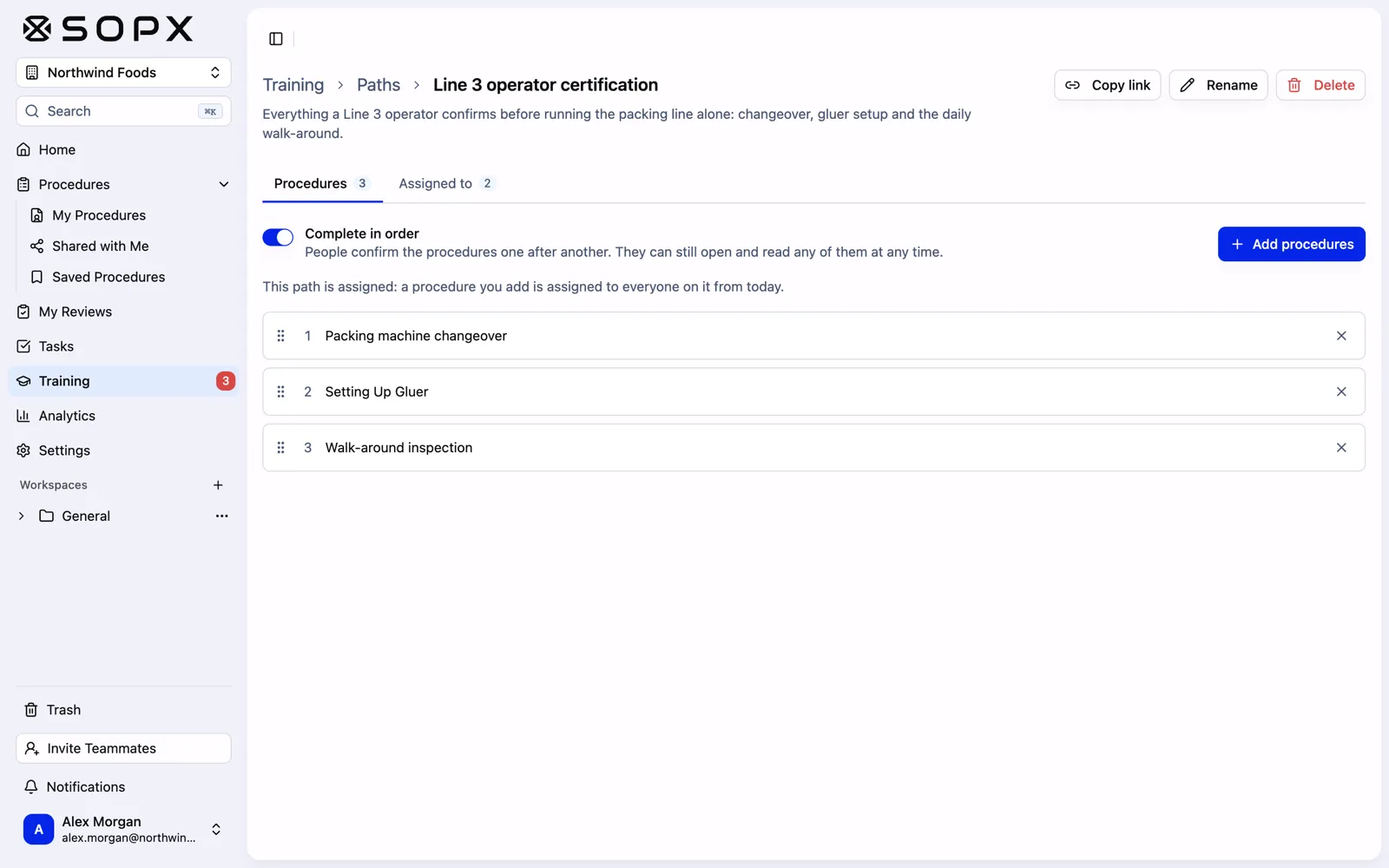
A training path with Complete in order on.
Turn on Complete in order when the order matters. People still can open and read any SOP in the path at any time. But they can only confirm the next one.
Did you add an SOP to a path that is already assigned? Then everyone on that path gets it from today.
Who can build paths? Owners and admins are always training managers. In Settings > Organization > Training, you can add creators too. So a QA lead or a shift supervisor can build paths and see progress without being an admin. The same settings page has one switch to turn training on or off. Turning it off hides training and stops reminders. It deletes nothing.
Assign to people or whole teams, with due dates
You can assign two things:
- A training path, from the path’s Assigned to tab.
- A single SOP, from the SOP’s menu. Click Assign training. The same menu has Training status.
You can assign to one person or to a whole team. A team assignment includes anyone who joins the team later. So a new hire gets their training on their first day, without you doing anything.
Due dates count from the day each person was assigned. Pick “Due within 3, 7, 14, 30, 60 or 90 days”, or type your own number. Someone who joins the team next month gets the same number of days.
Two small things save time:
- Access check. If someone can’t open an SOP you assign, SOPX tells you. If you are allowed to share it, SOPX offers to give them view access in the same step.
- Copy link. Send people a link that opens their view of the path.
What the employee sees
Employees see only My training. The Paths, People and Procedures tabs are for training managers.
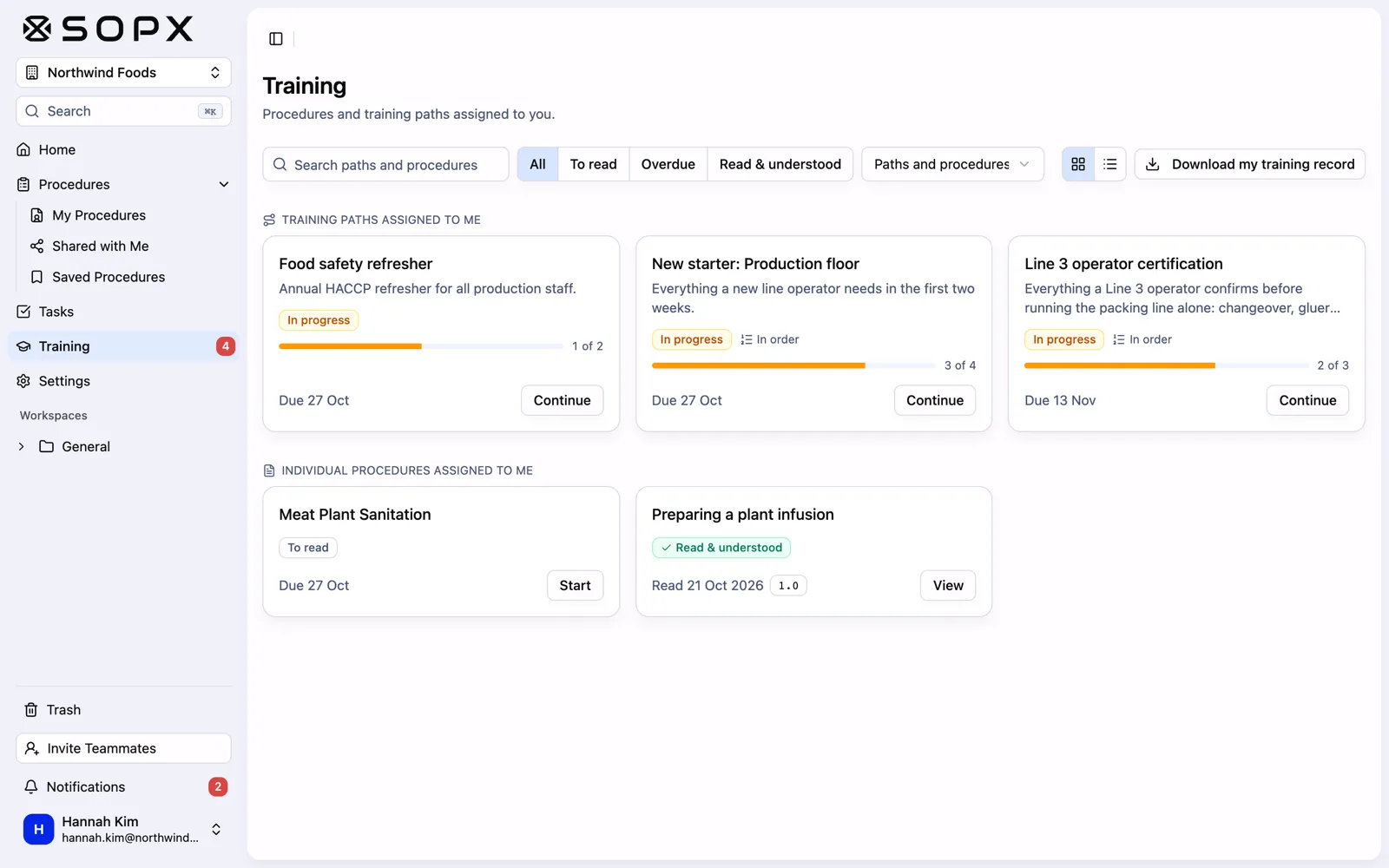
An employee’s My training page.
Here is what they get:
- Home shows training in “Waiting on you”, with progress and due dates. The sidebar shows how many items are open.
- My training lists paths and single SOPs, most urgent first. Filters show To read, Overdue, and Read & understood.
- A path page shows each SOP in order. Locked SOPs wait until the earlier ones are confirmed. A Continue button opens the next one.
- On the SOP itself, a bar says “Assigned to you as training” with the due date.
The SOP opens in a full-screen player, one step at a time. Each step shows its video or image, the annotations, and the text. It works on a phone, a tablet, or a screen at the station.
If the SOP is translated, people can switch to their own language. SOPX records the language they read in. This matters on a floor where not everyone reads English well. See work instructions for foreign-language workers.
Read & understood, with a signature
At the end of the SOP, the person clicks Mark as read & understood. They tick a statement that names the SOP and its version:
“I have read and understood Setting Up Gluer, version 2.0.”
If your organization turned on Require signature, they also draw a signature.
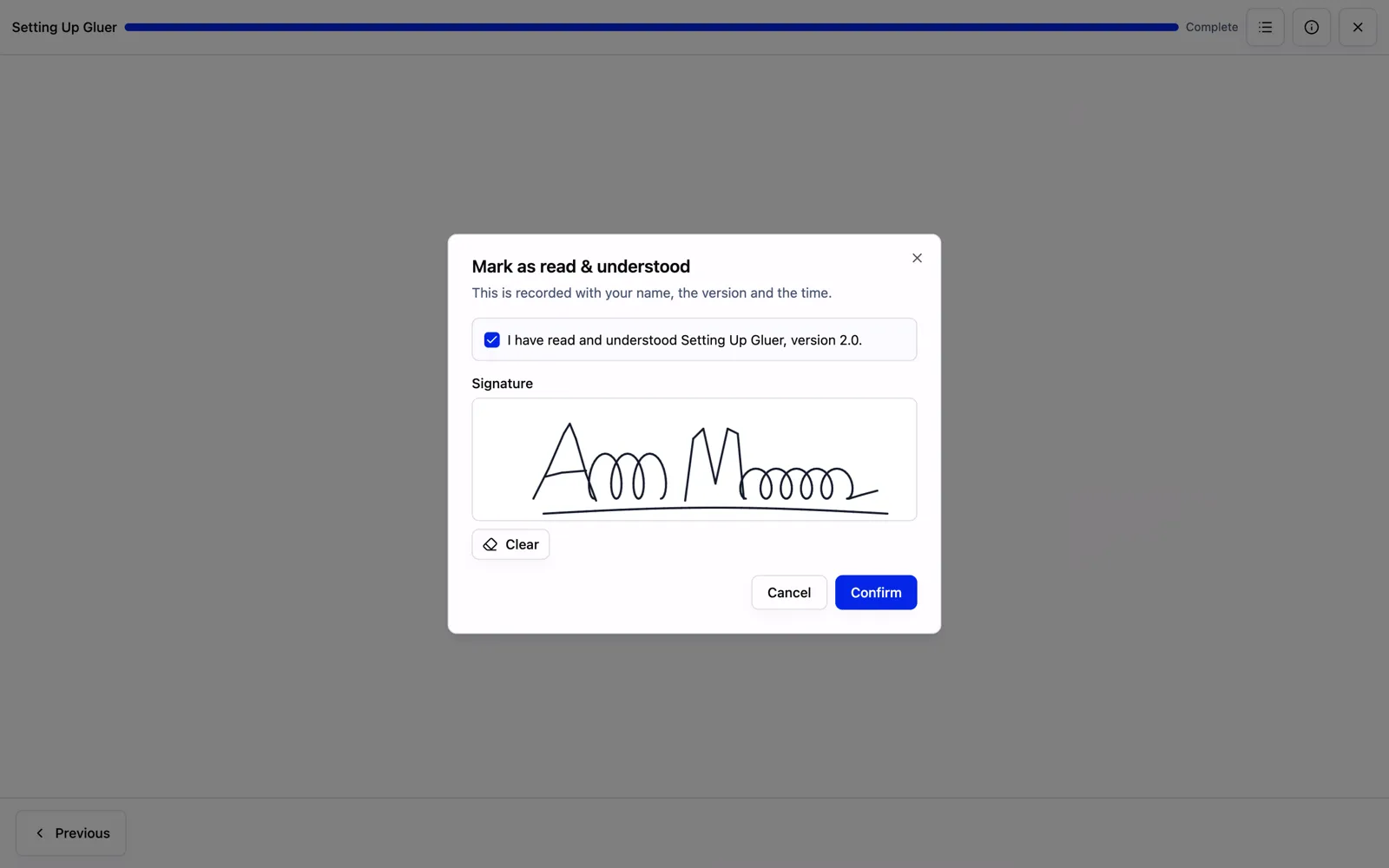
Read & understood names the exact version.
Every confirmation saves:
| Saved with each confirmation | Example |
|---|---|
| Person | Hannah Kim |
| SOP and version | Setting Up Gluer, version 2.0 |
| Date and time | 26 Oct 2026, 14:24, with the time zone |
| Language | EN |
| The exact statement | ”I have read and understood Setting Up Gluer, version 2.0.” |
| Signature | The drawn signature, if required |
Two details make the record trustworthy:
- One confirmation counts everywhere. Is the same SOP in two paths and also assigned directly? Reading it once completes it in all of them.
- Nobody confirms a version they did not see. If a new version is published while someone is reading, SOPX tells them and sends them back to the start.
When an SOP changes: retraining
You fixed a typo? Nobody needs to read it again. You changed a step on the machine setup? Everyone should.
So SOPX lets you choose. When you send out a new version, tick Requires retraining. You find it in three places:
- On Submit for review, next to “What changed in this version?”, when your approval flow is on.
- On Publish, when approval is off.
- On Restore version.
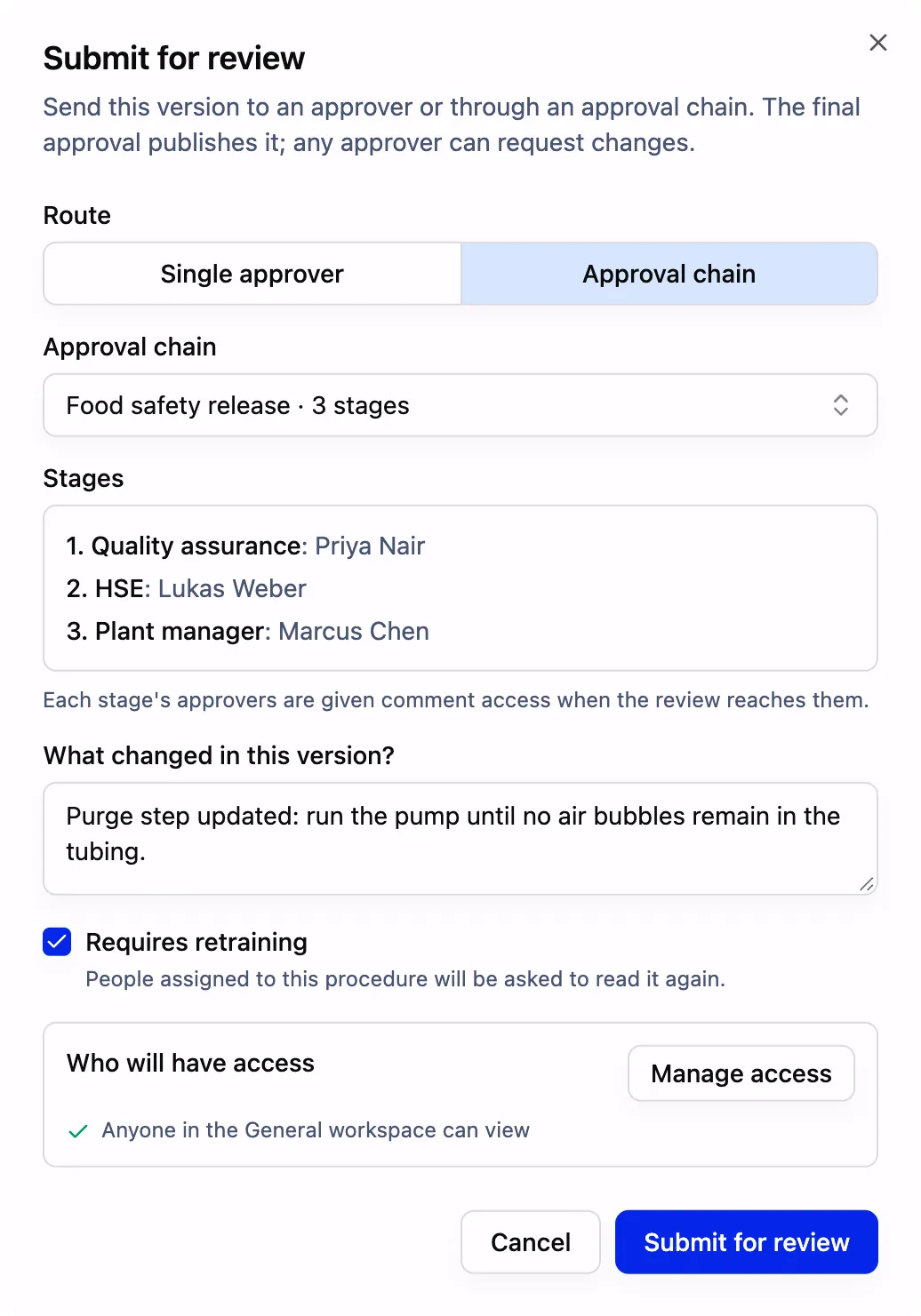
Tick Requires retraining when you submit the new version.
The approver sees that retraining was requested. This works with multi-step approval chains too. Once the version is published, everyone who has that SOP is asked to read and confirm it again. They get a notification.
Need retraining without a new version? For example after an incident? Open the SOP’s training page and click Require retraining now. SOPX shows how many people it affects before you confirm.
Earlier confirmations are never overwritten. They stay on the record and are marked as no longer counting. So you can always see who read version 1.0 and who has read version 2.0.
The training manager’s overview
Training managers get three views.
- People. Everyone with training, their progress (for example “4 of 5”) and how many items are overdue. Open a person to see each path and each SOP, and click View record to see what they confirmed.
- Procedures. Every assigned SOP, how many people confirmed it, and how many are overdue.
- One SOP. Who has it and how they got it: directly, through a team, or through a path. When they read it, which version, and the status.
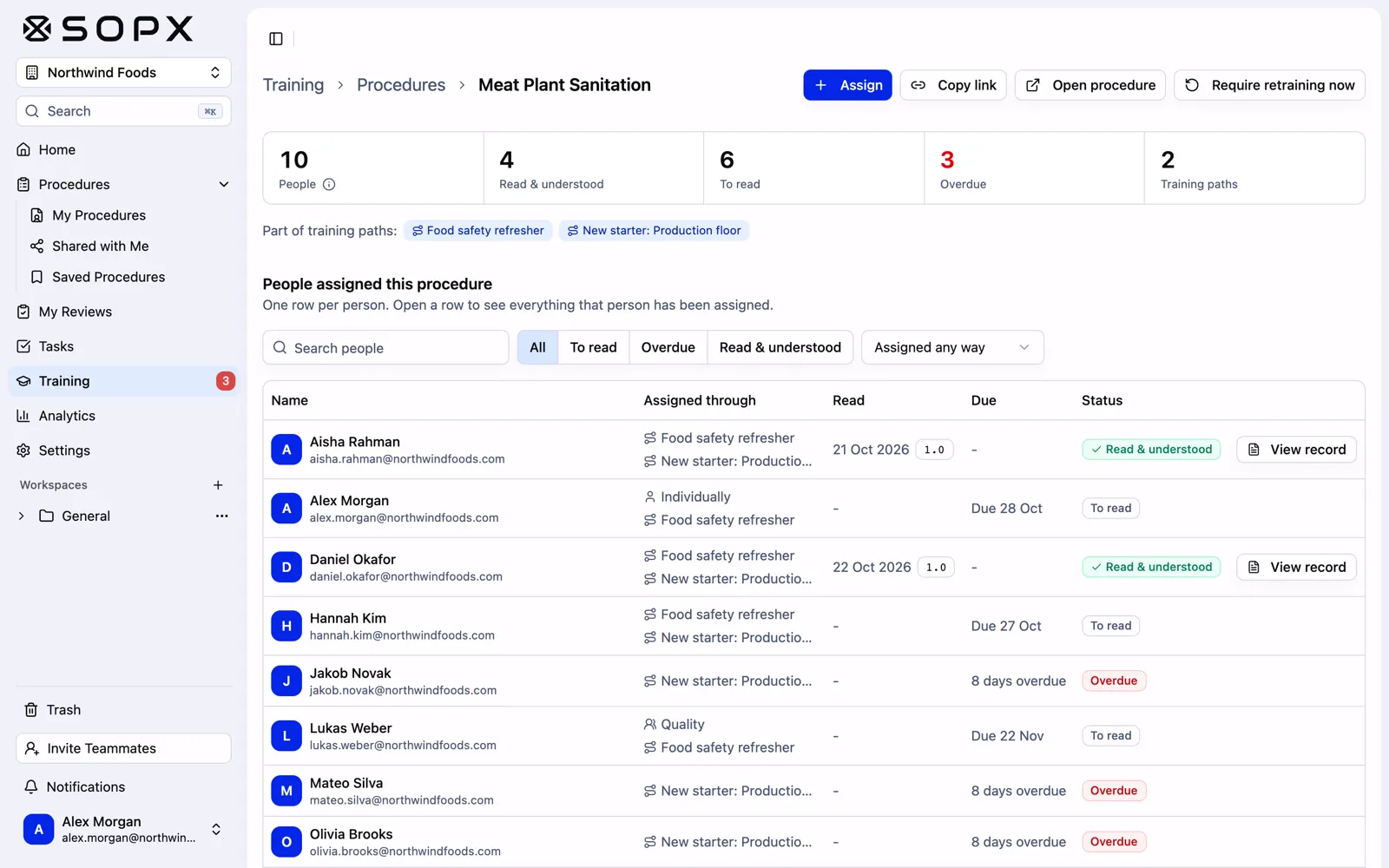
Who has the SOP, how they got it, and who is overdue.
From the SOP view you can assign more people, copy the link, open the SOP, or require retraining now.
Proof for auditors: PDF record and CSV export
Standards like ISO 9001 ask you to keep evidence of training. Clause 7.2 says to “retain appropriate documented information as evidence of competence”. Food safety schemes like BRCGS and IFS ask for training records too. A signed Read & understood is one strong part of that evidence. See ISO 9001 SOPs and work instructions for the full clause 7.5 picture.
SOPX gives you two exports:
| Export | What it holds | Who can download it |
|---|---|---|
| Training record (PDF) | One person: their paths and progress, every assigned SOP with status and due date, then every confirmation with version, time, language, statement and signature | Training managers for anyone. Every employee for themselves |
| Export all records (CSV) | One row per confirmation in your organization: person, email, SOP, version, time (UTC), language, signed, still counts, path, statement, record ID | Training managers |
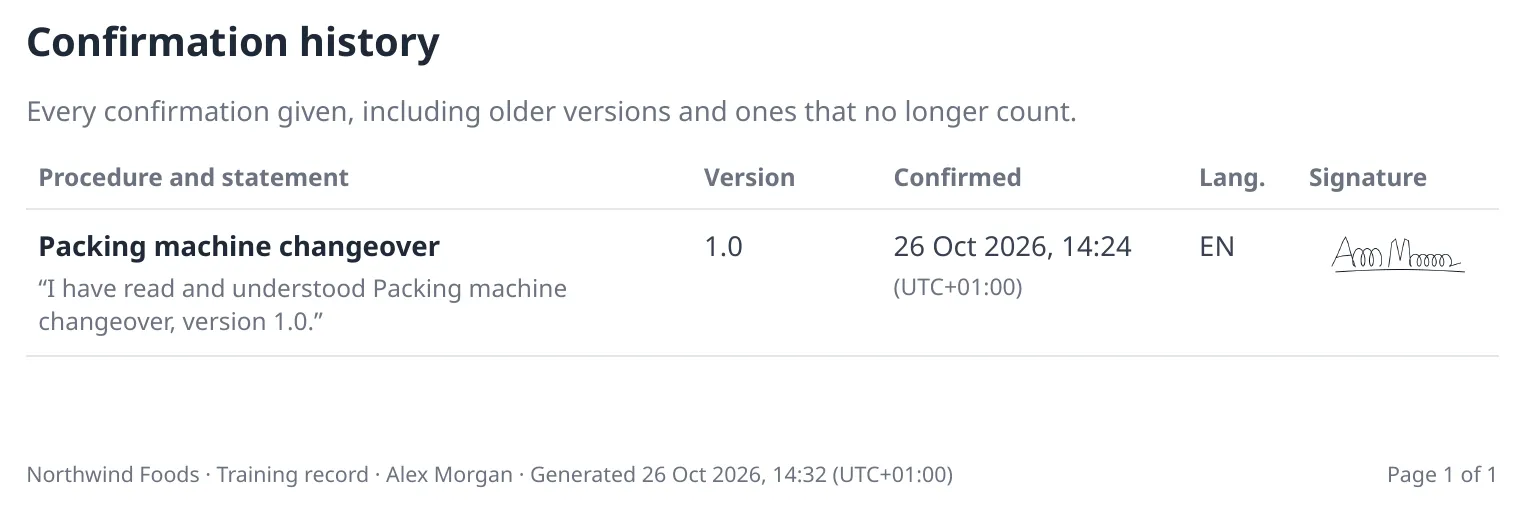
A signed confirmation in the PDF training record.
The PDF carries your organization’s logo. Open the CSV in Excel or Google Sheets and filter by SOP, path, or date.
Records are append-only. They are never edited or deleted. They stay when a person leaves and when an SOP is archived.
Reminders, so you don’t chase people
SOPX sends the reminders for you:
- On assignment. People get a notification and an email right away.
- Joined later. A daily check notifies people who got training later, for example after joining a team.
- Due soon. People get a reminder 2 days before the due date.
- Every Monday. Overdue people get a reminder. Training managers get one summary of who is overdue and who can’t open an SOP they were assigned.
People choose how they get training notifications, in the app and by email, in their own settings.
What training does not do today
Training in SOPX is built around one job: people read the current SOP and confirm it. It does not include quizzes or tests, certificates, a skills matrix, or retraining on a schedule (for example every 12 months). Trainer-led sign-off on the floor is not part of it either.
If your team already runs courses in a separate system, see SOP software vs LMS. On the Enterprise plan you can also export SOPs as SCORM 1.2 packages for that system.
Plans and who counts as a user
- Training is on every plan. Standard includes 5 training paths. Premium and Enterprise include unlimited paths. The free trial includes 5.
- Single SOPs are not limited. Assigning one SOP to a person or team does not count toward your paths.
- Viewers are included. People who only read and complete training are viewers, included at no extra cost on every plan. Your price stays the same when the whole floor joins.
- Creators manage training. Owners, admins and creators build paths and assign training.
See pricing for the full plan list.
Getting started
- Turn on training in Settings > Organization > Training. Add your QA lead or supervisor as a training manager.
- Build one path for new starters. Start with the 5 to 10 SOPs every new hire needs in week one, such as machine setup, changeover, and line cleaning.
- Assign it to the team, with a due date. New hires who join the team get it too.
No SOPs yet? Film the job on a phone and SOPX writes the steps. Training work instructions shows how teams in manufacturing and food production go from video to a trained operator. If you lead training, see the page for training managers.