

Reuse Steps Across SOPs, and Add Tables to Any Procedure

Import steps from any other procedure at the exact position you want, duplicate a whole procedure as a starting point, and add tables to step descriptions and SOP details.
TL;DR
Three additions from July, all aimed at the part nobody talks about: editing. You can now insert steps from any other procedure at an exact position, duplicate a whole procedure, and put tables in step descriptions and in SOP details.
- Hover the line between two steps, pick From another procedure, choose the SOP, the version, and the steps you want.
- Steps arrive with their video clips, images, annotations, and Run mode form fields intact.
- Select all merges a whole procedure into the one you are building. Useful for stitching a long process recorded in parts.
- Duplicate copies an entire procedure, translations included, into a fresh draft you own.
- Tables go in any step description or SOP details section, and survive translation, PDF, and Word export.
Generating the first SOP was never the slow part
Filming a job and getting a structured procedure back takes minutes. The time goes somewhere else. It goes into the second procedure, the fifth, the twentieth, where you find yourself retyping the same lockout step, or flattening something that was clearly a table into a paragraph nobody can scan.
In July we released a few updates that help with better SOP creation experience.
Import steps from another procedure
In the editor, click the insert line between any two steps. Two options appear, Blank step and From another procedure.
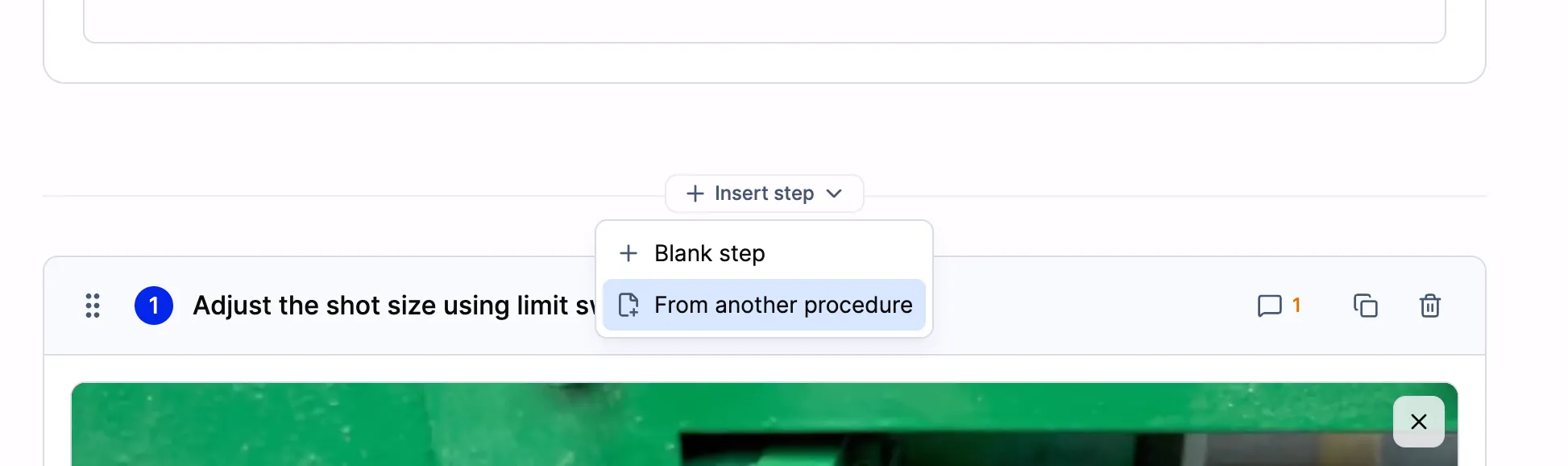
The insert line sits between every pair of steps, so whatever you import lands exactly where you opened the menu.
Pick the second one and you get a picker:
- Find the source. Search by title, or take one from the recently created list. Only procedures you already have access to appear.
- Pick the version. If the SOP has several, choose which one you are copying from. Editors see every version, everyone else sees the published one.
- Choose the steps. Tick them individually, preview one before you commit, or hit Select all.
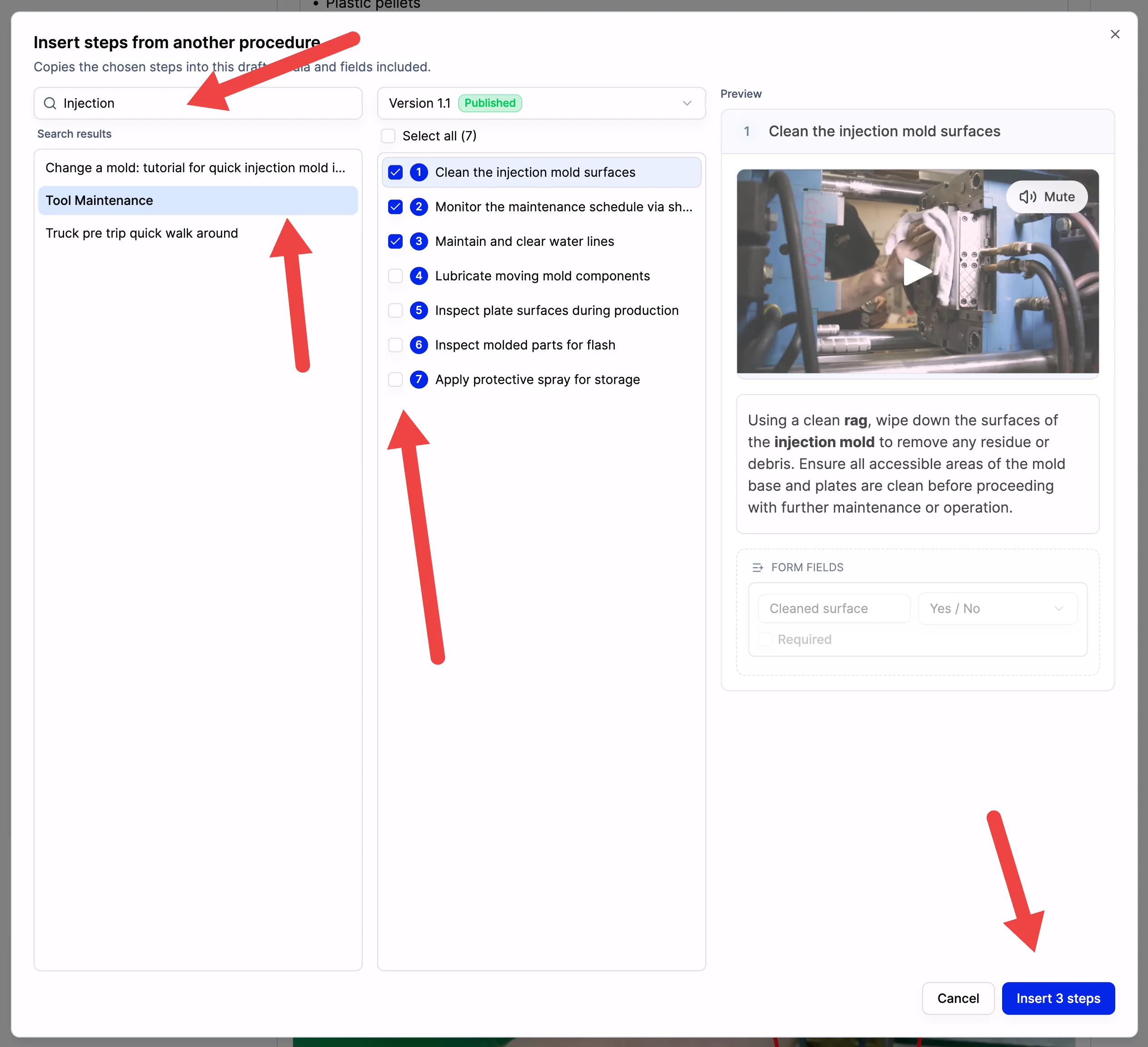
Search for the source procedure, choose the version, then tick the steps you want. The preview on the right shows what you are about to copy, media and form fields included, and the button counts the selection.
They land at the exact position you opened the menu at, in their original order, as ordinary unsaved steps. Nothing is written until you save, so an import you regret is one undo away.
Each step brings its video clip, images, annotations, and Run mode form fields with it. The media is referenced rather than duplicated, so pulling the same step into ten procedures does not create ten copies of the clip.
Three ways teams use this
Write the shared step once. Most operations have a handful of steps that show up in every procedure. Lockout, line clearance, hand wash, PPE check, end-of-shift cleandown. Get one of them exactly right, with the right clip and the right annotation, in one procedure. Then import it everywhere else instead of rewriting it and slowly drifting into five versions of the same instruction.
Stitch a long process together. A changeover that runs forty minutes does not fit in one recording on a standard plan. Film it in parts, name them Line 3 Changeover, part 1, part 2, and so on, and generate each part as its own SOP. Then open part 1, import all of part 2 at the end, and repeat. You end with one continuous procedure and the parts can be archived. (If you would rather hand several sources to the AI at once and get a single SOP back, that is multi-file generation, included on the Enterprise plan.)
Build variants from a base. Two machines that share 80% of a procedure do not need two procedures written from scratch. Import the shared steps, then edit the 20% that differs.
What does not come across
Worth knowing before you rely on it:
- It is a copy, not a link. Editing the source procedure later does not change the steps you imported. That is deliberate. A shared step you can accidentally rewrite from another department’s SOP is worse than a duplicate.
- Same language only. You can import content that exists in the language you are editing. A step that has not been translated into that language is not offered, because it would arrive blank.
- Steps only. The source procedure’s title, description, and SOP details stay where they are.
- Other procedures only. To repeat a step inside the SOP you are already editing, use clone.
Every import is recorded. Procedure history shows which procedure and which version the steps came from, and how many, so an auditor asking where a step originated gets an answer.
Duplicate a whole procedure
Importing steps builds one procedure out of pieces of others. When the entire thing is the starting point, duplicate it instead. Duplicate sits in the three dots menu on a procedure and on its card: pick which version to copy, name it, give it a document number, and you get a fresh draft you own.
Everything content-shaped comes across. Every step, image, annotation, form field, SOP details section, and every translation you have already paid for in review time. The copy lands in the same workspace and inherits that workspace’s access, while per person shares and public links are deliberately left behind, so a duplicate never quietly widens who can see something.
Tables in steps and in SOP details
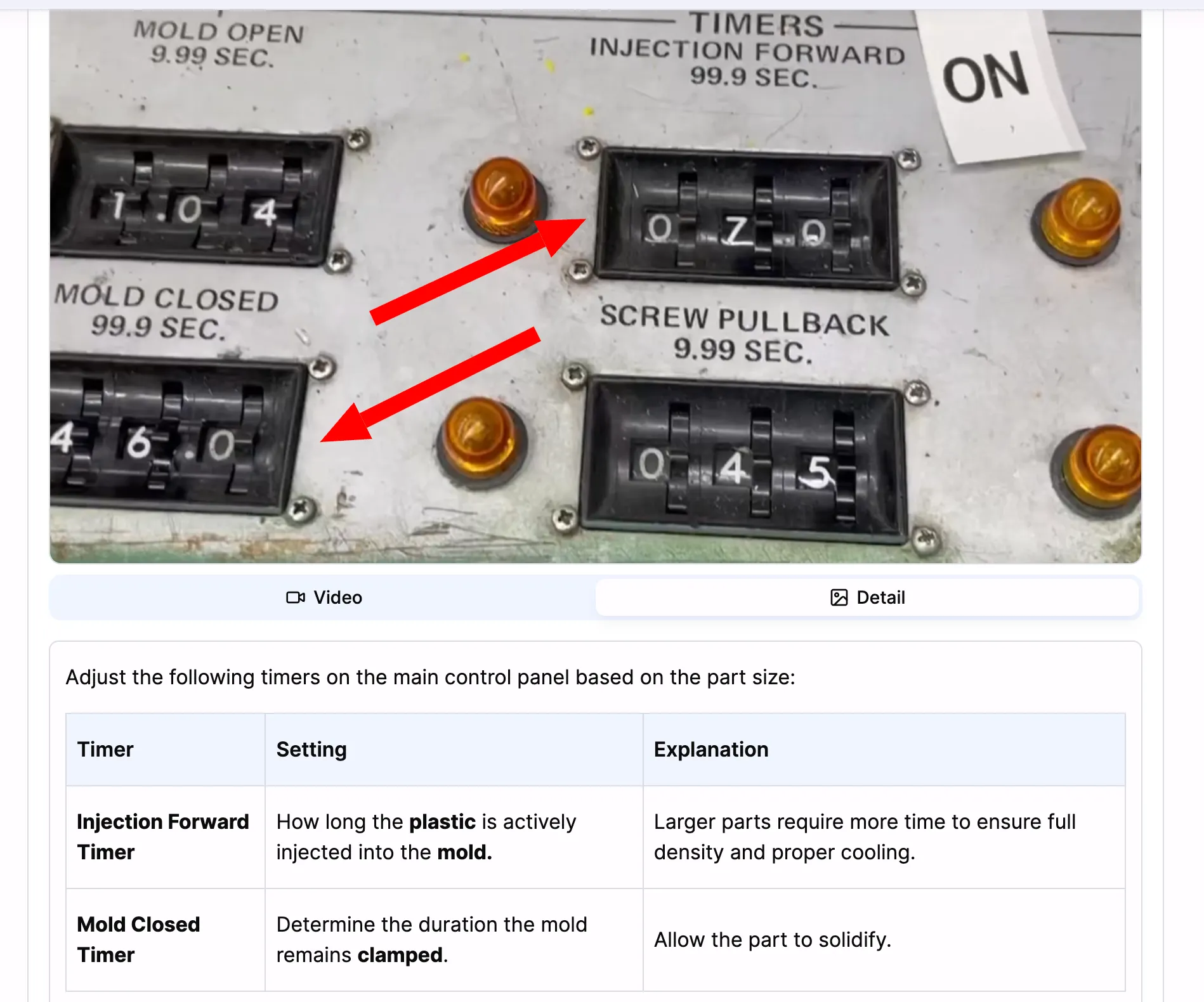
A step description carrying a table: which timer, what it controls, and why it changes with part size. As a paragraph, an operator would have to read the whole thing to find one value.
A table is a presentation format for your SOP data. The moment information has the same shape repeating, a label against a value, a condition against a response, an item against its specification, a grid reads faster than a sentence. The reader finds the one row they need instead of parsing a paragraph to reach it.
That covers a lot of what sits inside a procedure:
- Reference values a step depends on, whatever your process calls them.
- Troubleshooting lookups with symptom, likely cause, and what to do.
- Tools, parts, or materials with quantities and where to find them.
- Acceptance criteria against limits, and what happens when something falls outside them.
- In SOP details at the top: roles and responsibilities, definitions and abbreviations, related documents, distribution.
The table button in the editor toolbar drops a table into any step description or any SOP details section. Put the cursor in it and a small control bar appears at the table itself. From there you add or remove rows and columns, or delete the table. Wide tables scroll inside the step instead of stretching the layout on a tablet.
The AI writes them too
Three ways a table shows up without you building it:
- Ask for one in the additional prompt when generating: “put the acceptance criteria in a table”.
- Describe it in an SOP details section, and the AI fills that section as a table each time it generates.
- Let it decide. When the source genuinely presents parallel data, setting to value, condition to action, item to specification, the AI reaches for a table on its own.
It stays conservative on purpose. Prose and bullet lists are still the default, a sequence of actions never becomes a table, and safety warnings stay as callouts rather than getting buried in a cell.
They hold up downstream
A table is only useful if it survives the trip. These do:
| Where it goes | What happens |
|---|---|
| AI translation, 50+ languages | Structure is preserved, cell contents are translated |
| PDF export | Drawn as a real grid, and paginates across pages |
| Word export | A real Word table, editable by whoever receives the document |
| Full screen mode | Readable on the floor alongside the step’s clip |
Frequently asked questions
Can I merge two SOPs into one?
Yes. Open the one you want to keep, hover the insert line where the second procedure should begin, pick From another procedure, and use Select all. Every step arrives in order with its media. This is the usual way to join a long process that was recorded and generated in parts.
If I edit the original step later, do the imported copies update?
No. Importing copies the step at that moment. The two are independent from then on. If a shared step changes and it matters everywhere, update the procedures that use it, or re-import.
Can I import from any procedure in the organization?
Only ones you can already open. The picker is filtered by the same permissions as the rest of the app, so it never surfaces a procedure you would not otherwise see.
Where can tables be used?
In any step description and in any SOP details section at the top of a procedure. Cells hold text, bold, italic, and links. They do not hold lists, images, nested tables, or merged cells, which keeps them rendering the same way in the editor, in translations, and in exports.
Do imported steps keep their Run mode forms?
Yes. Form fields and their options come across with the step, so a checklist you built for one procedure works in the next one without rebuilding it. More on that in Run mode.